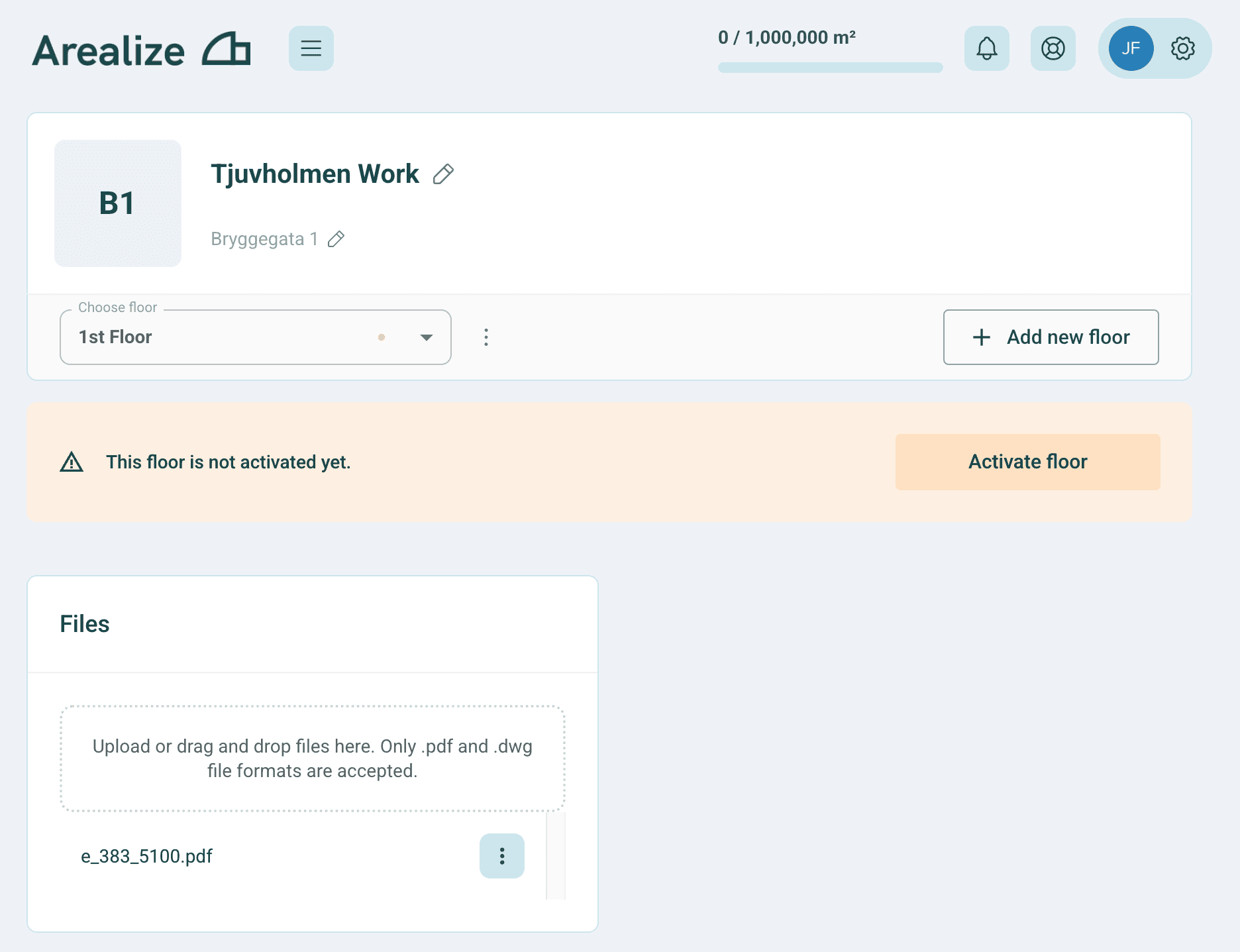
Add Floors
How to add floors to a building
Steps
1
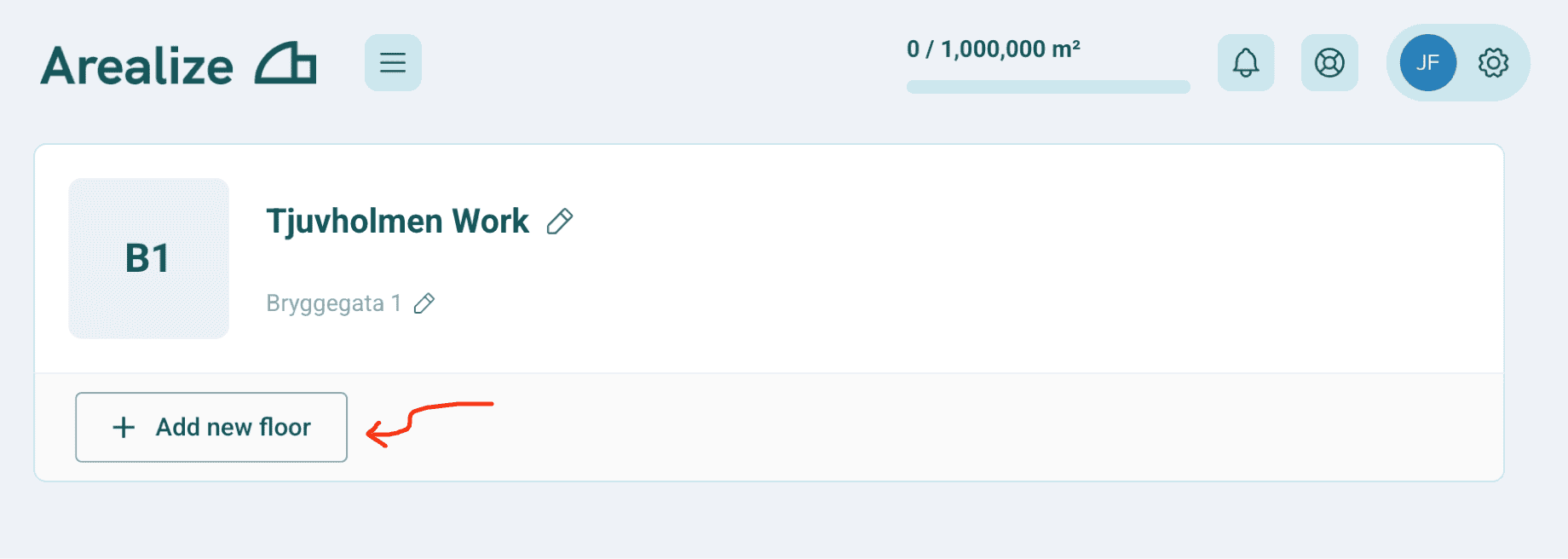
Add a floor
Click on the “Add new floor” button.
2
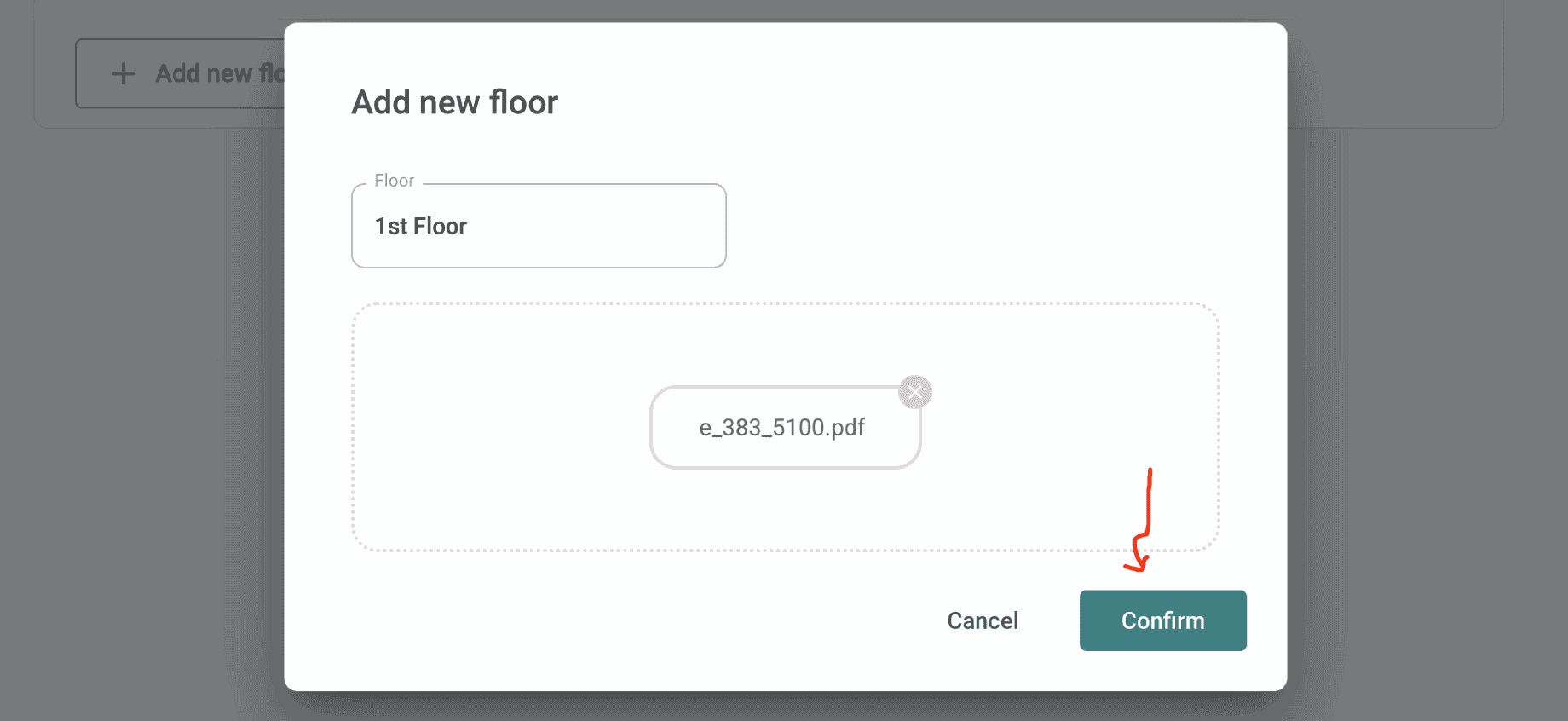
Upload floor plan
Enter the floor number, for example, “U1”, “3”, or “Roof”. Drag and drop a PDF for the floor, and click “Next”.
3
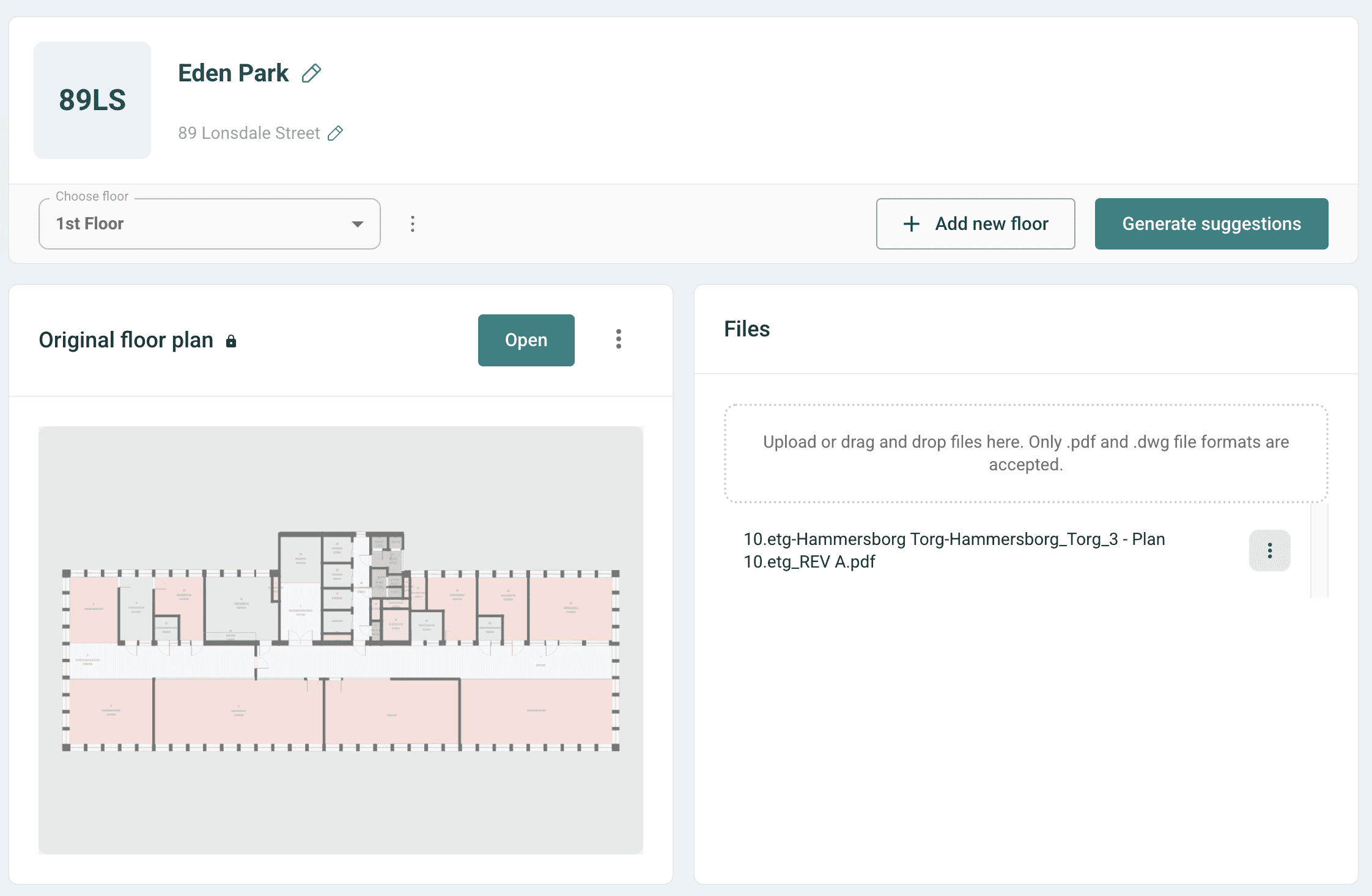
Edit details and upload more files
The floor is being activated, but you can still make changes, or delete and add new files.