Buildings
Add floors
Add floors and upload floor plan files
Steps
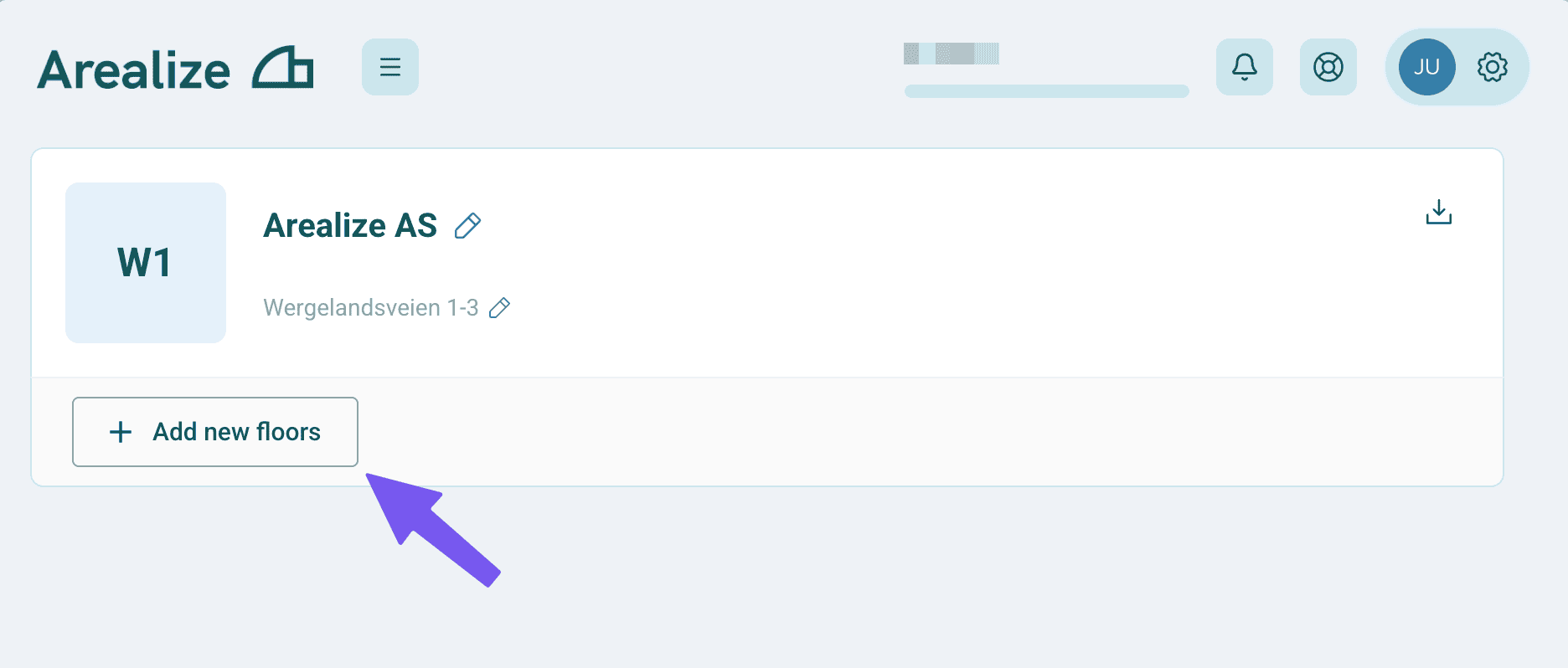
Upload your floor plans
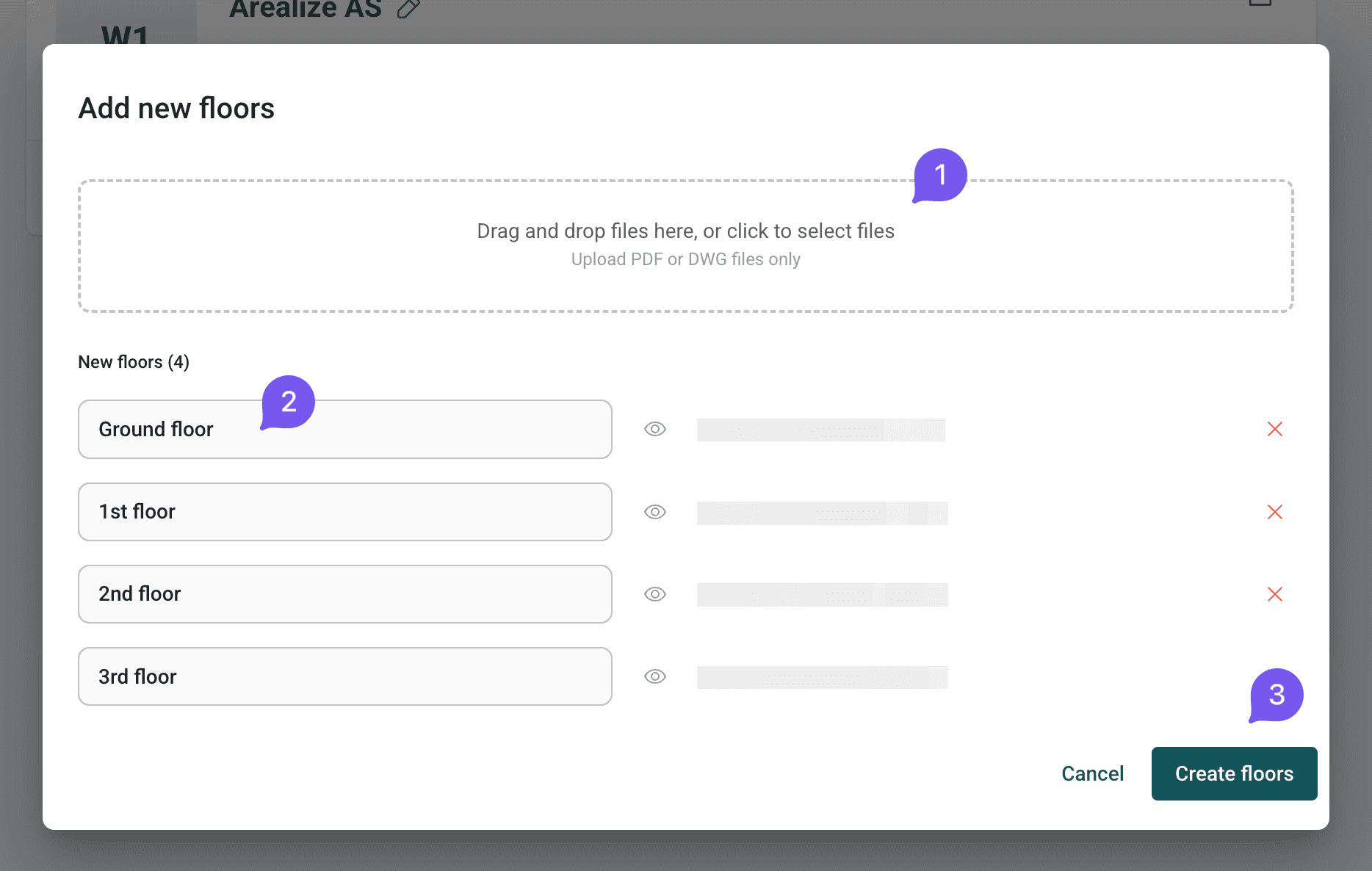
Upload your floor plans as a single or multi-page PDF — floors are automatically detected from each page. Give each floor a unique name, such as "U1", "3", or "Roof". Once you're happy with the names, click Confirm to create the floors.
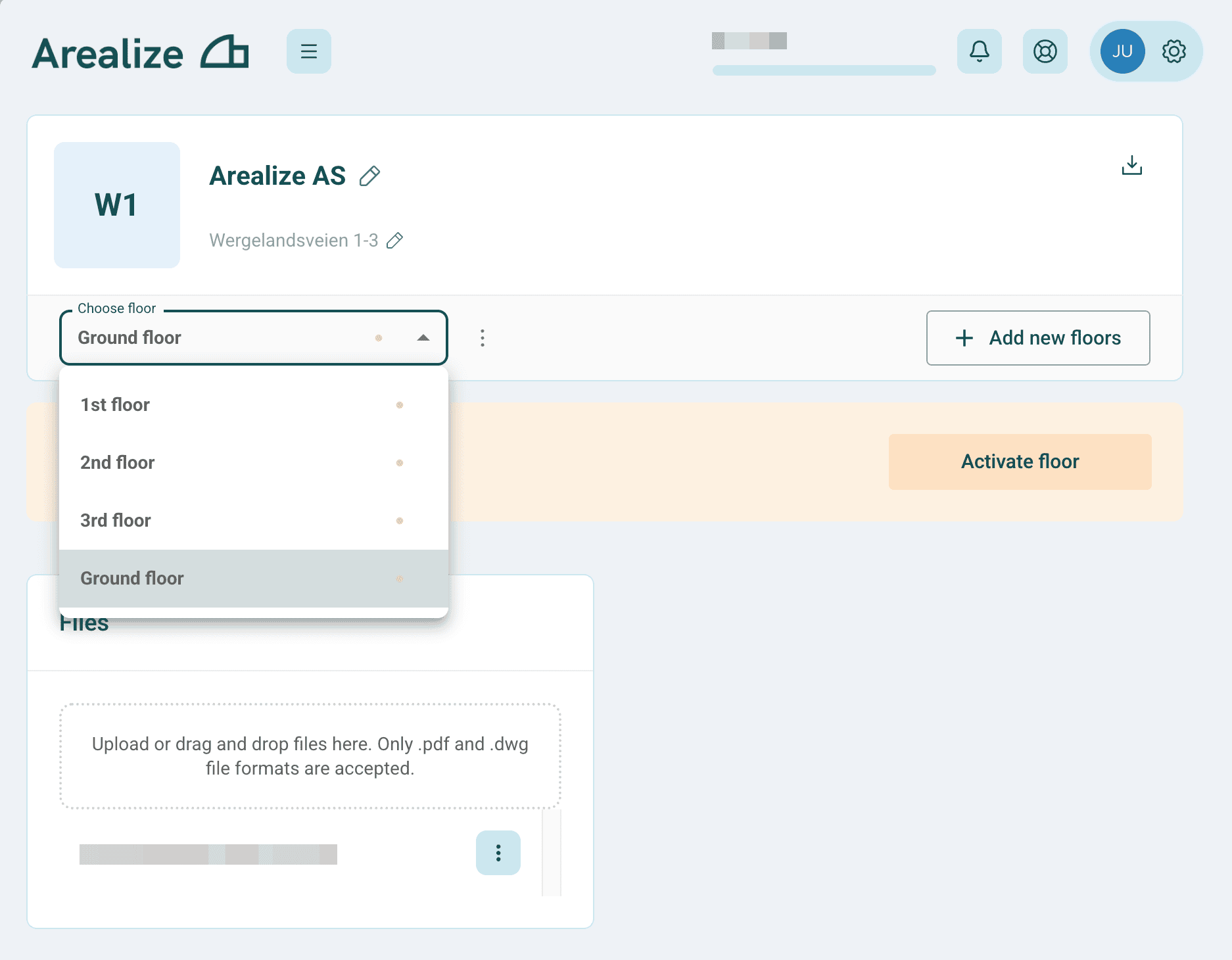
Edit and manage your floors
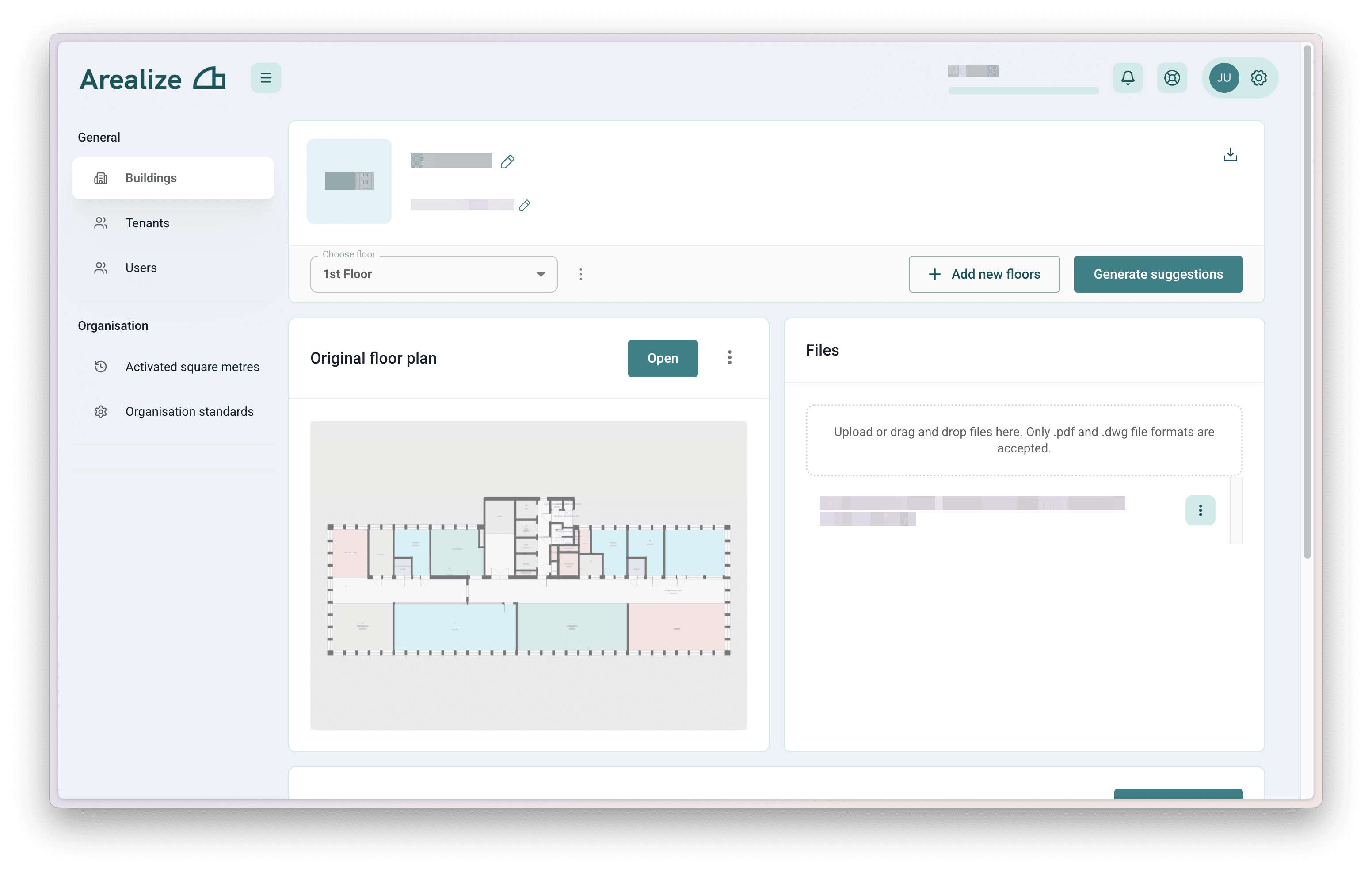
Your floors are now being activated. You can still rename floors, swap out files, or remove and re-upload at any time.