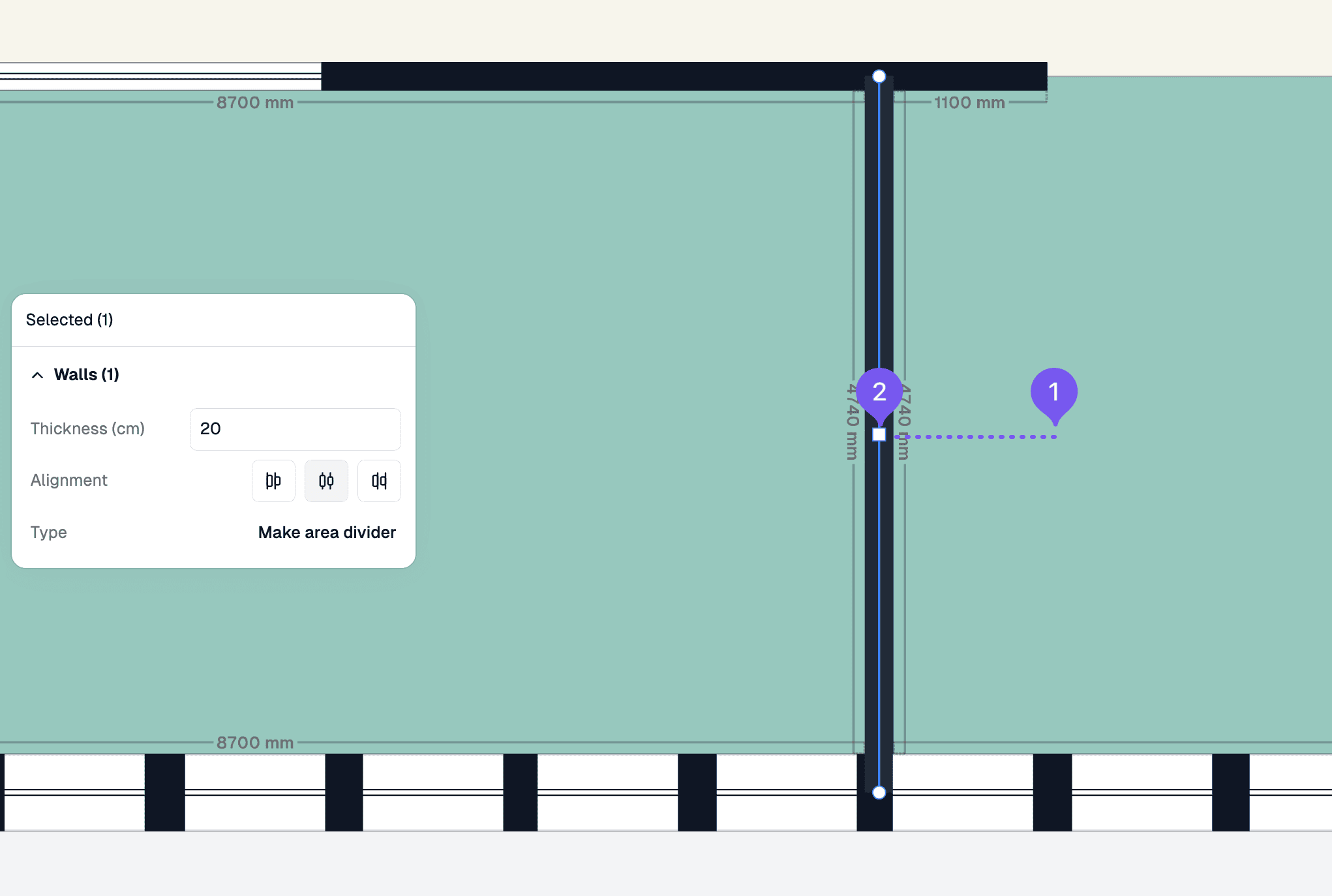
Locked elements
Lock elements to prevent accidental changes
Unlock a locked element
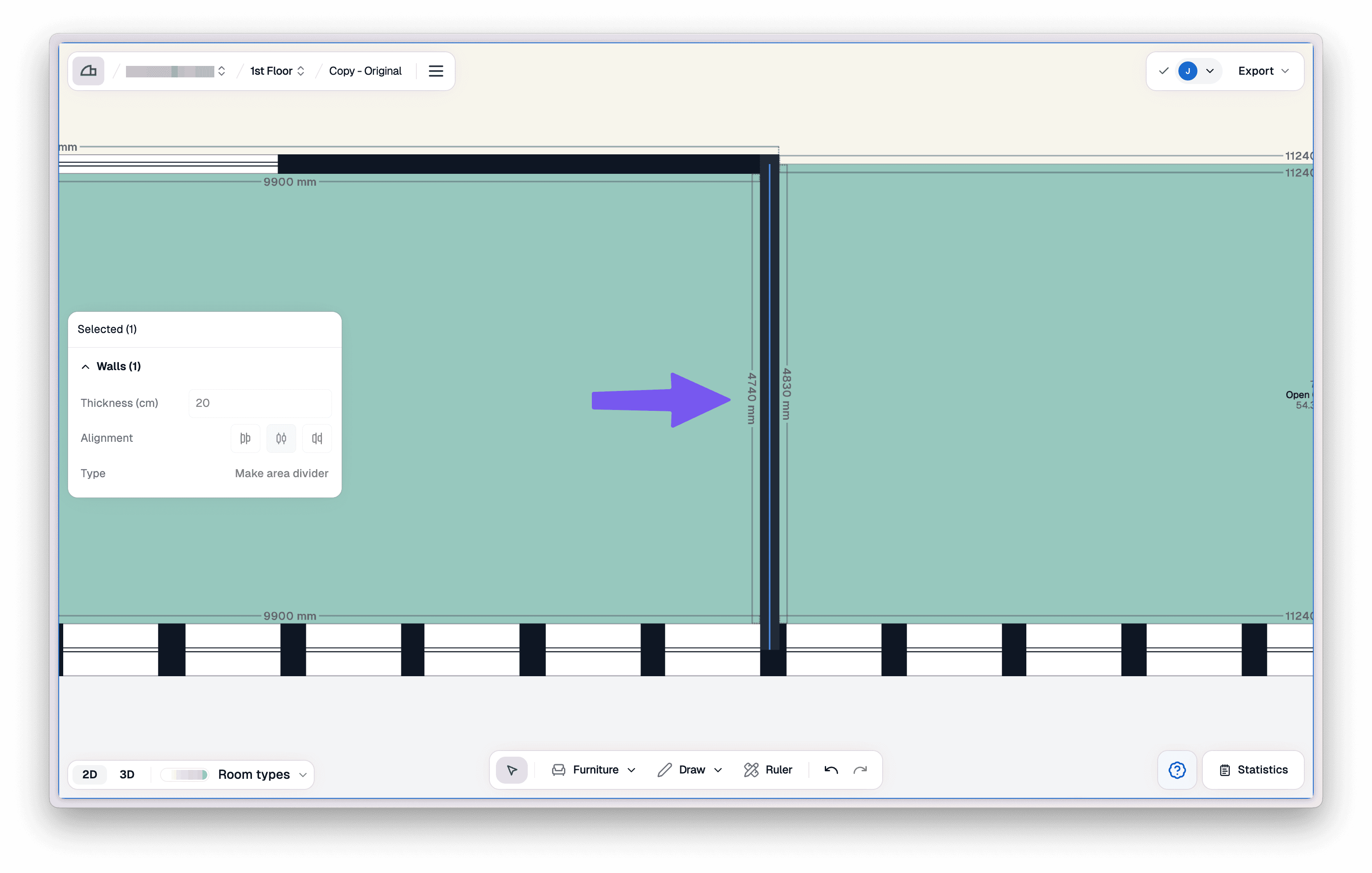
Locate the locked element
Identify the locked element on your floor plan (for example, a structural wall). Locked elements are indicated visually.
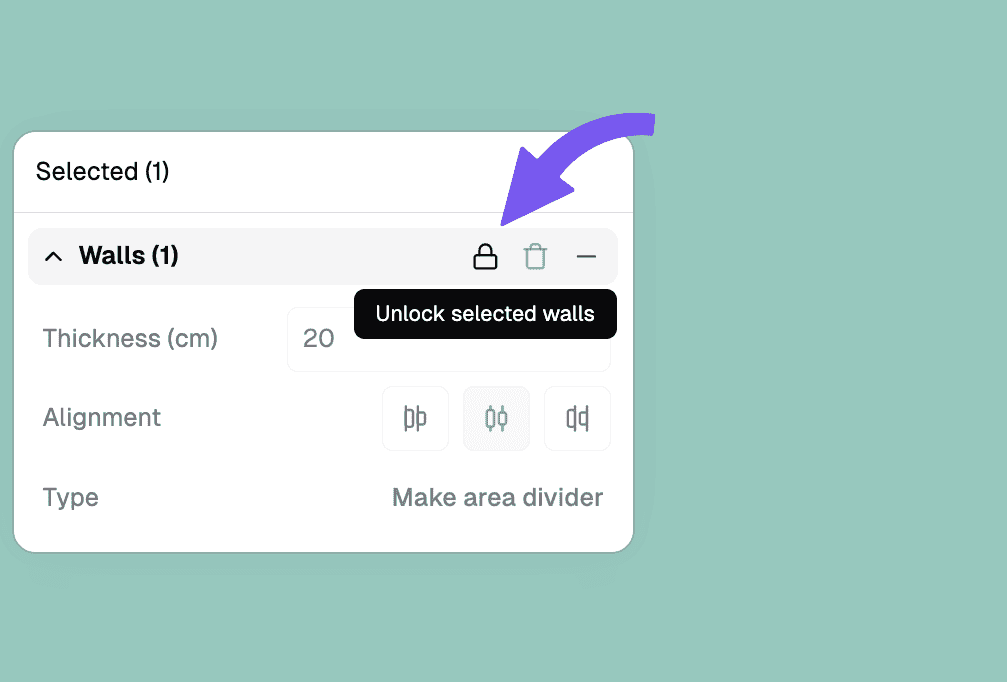
Unlock the element
Select the locked element, then click the "Unlock" button in the properties panel on the left side.
Move the unlocked element
The unlocked wall can now be moved. Click and drag it to the desired position on the floor plan.