
Tools
Wall
Add walls and area dividers
Steps
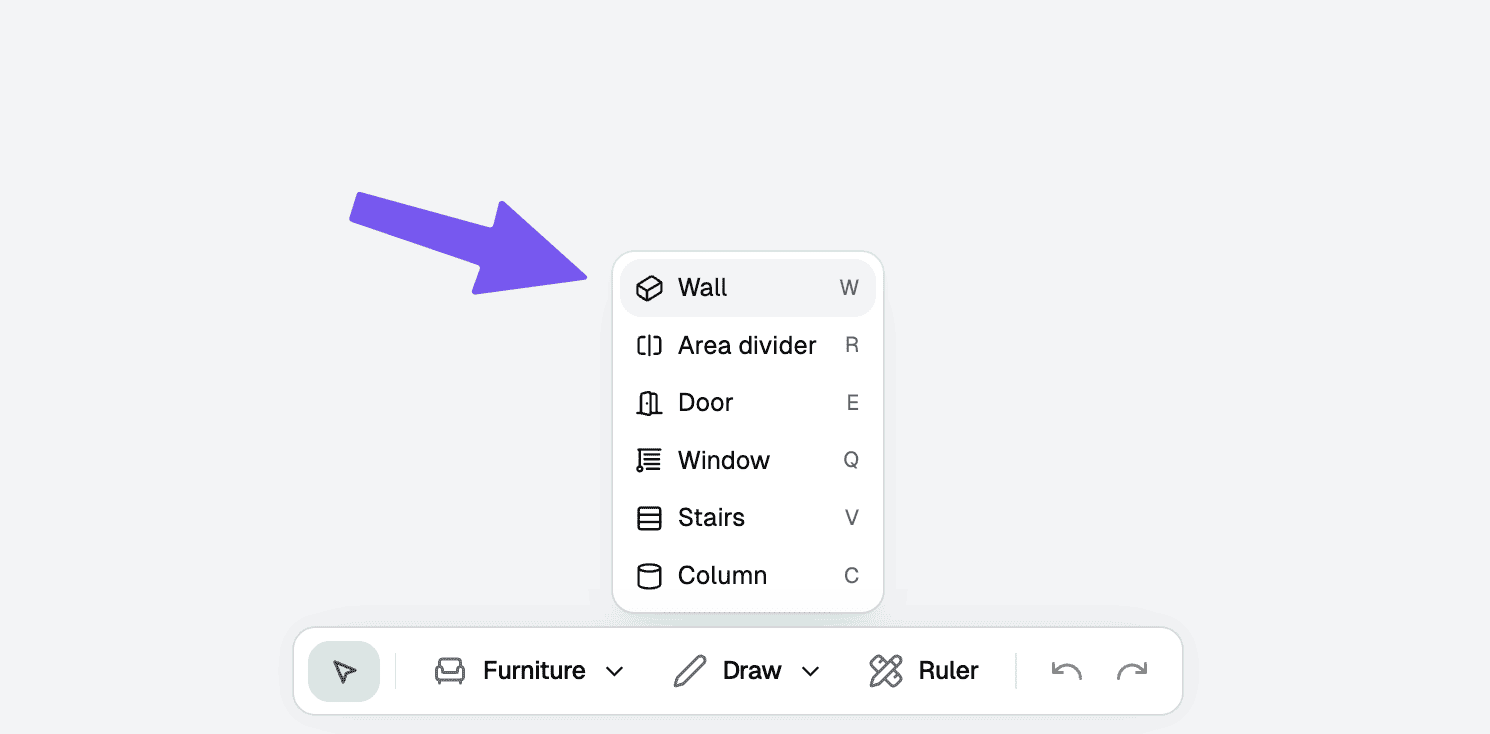
Select the wall tool
From the toolbar at the top, choose the "Wall" tool. You can also use the shortcut "W" (Wall).
Place the wall
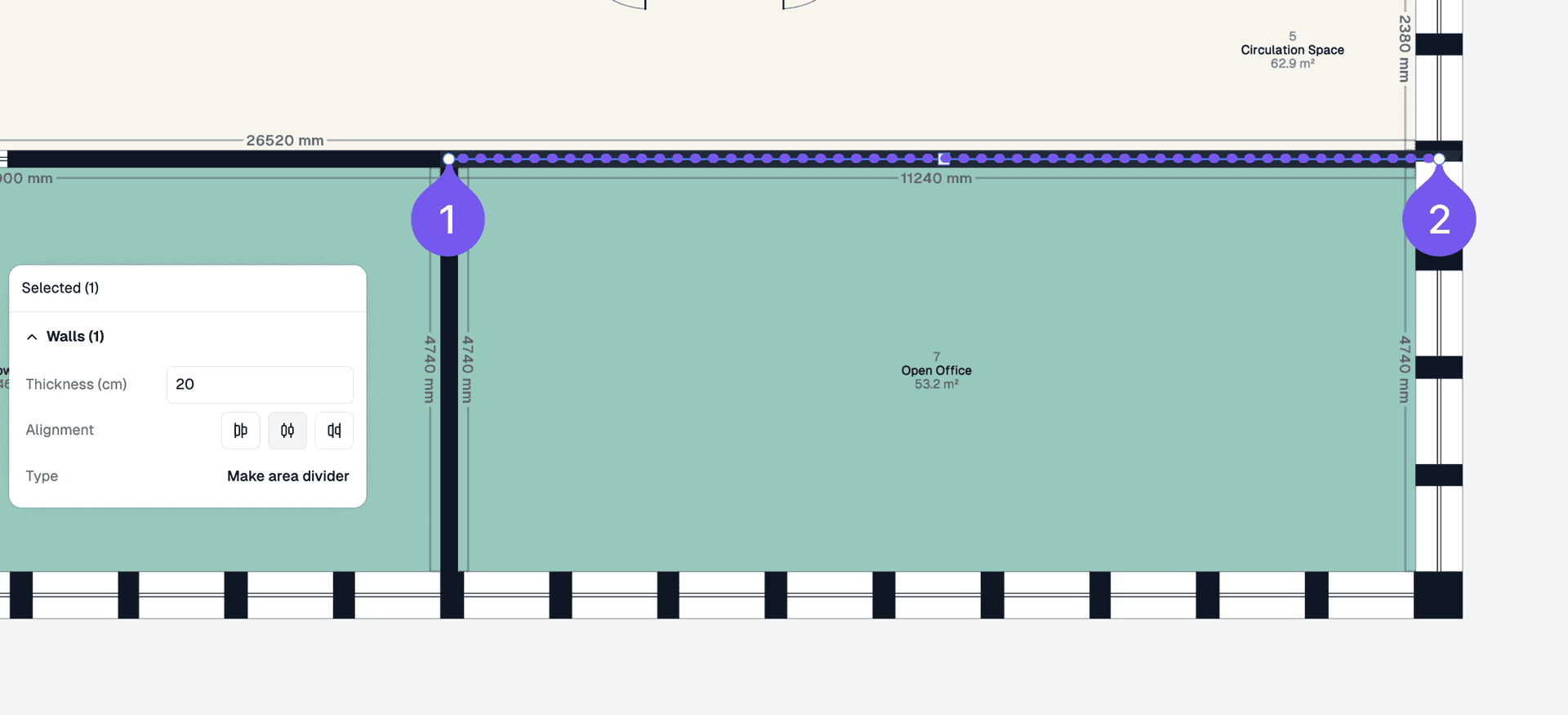
Click once to start the wall, and click again to finish. You can also hold down [Shift] to continue the wall.
Area dividers
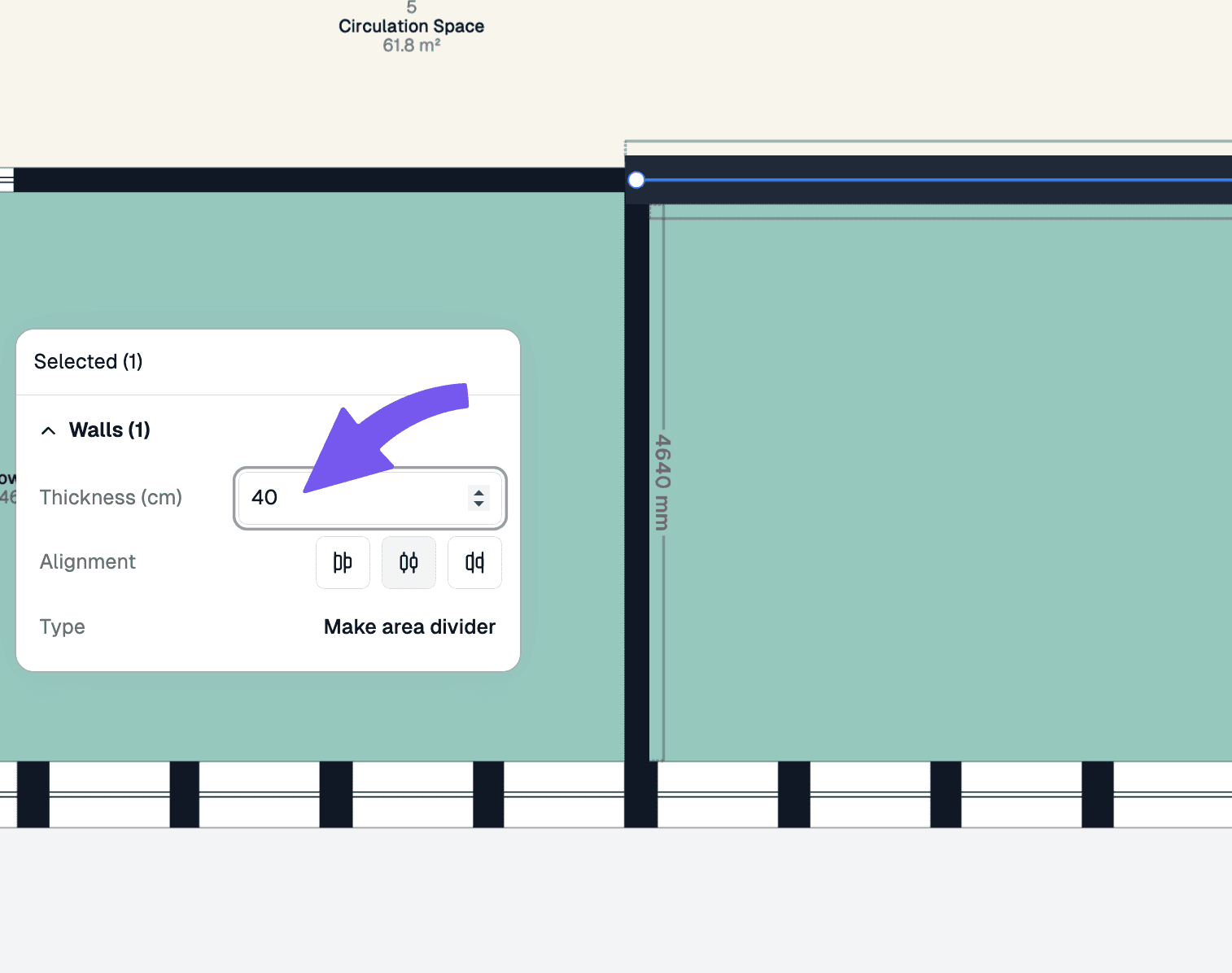
Area dividers should be used to split up an area without introducing a physical wall. This is useful for creating logical divisions within a space while maintaining visual separation.
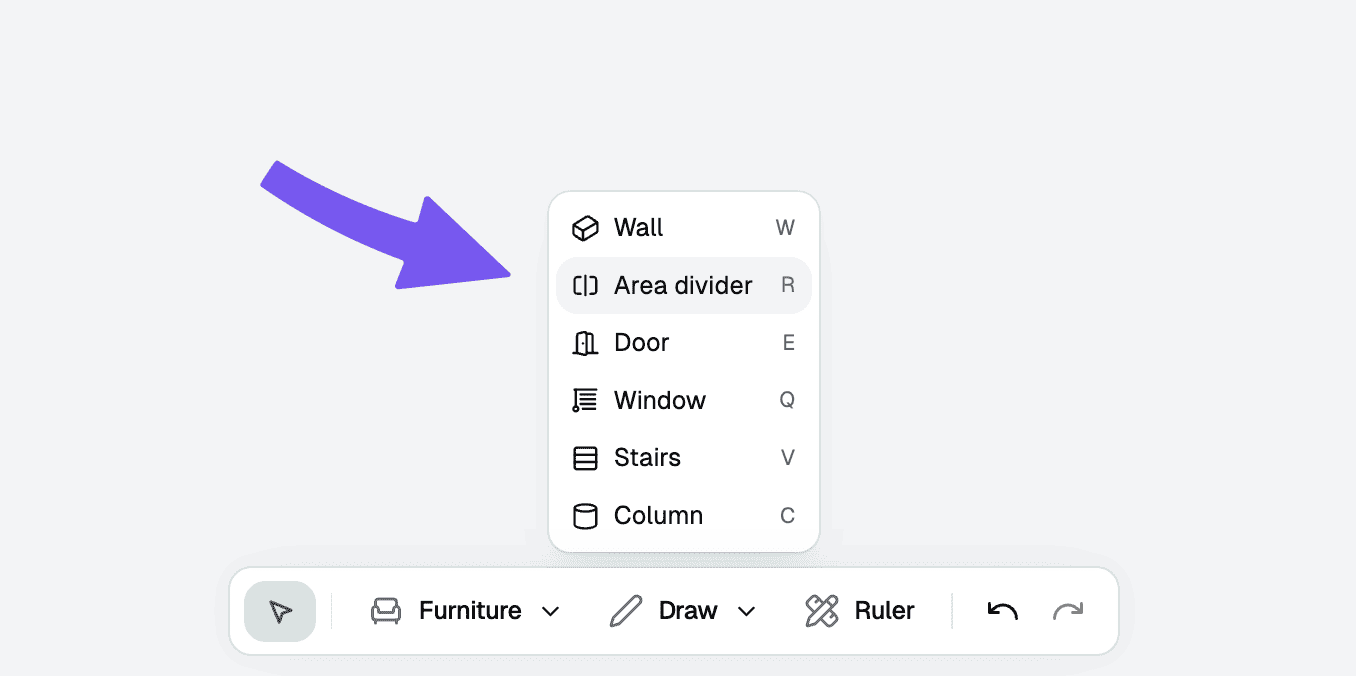
Draw the divider line
Click to start the divider line and click again to end the divider line. Hold "Shift" key to continue drawing.
Troubleshooting
How do I delete a wall or area divider?
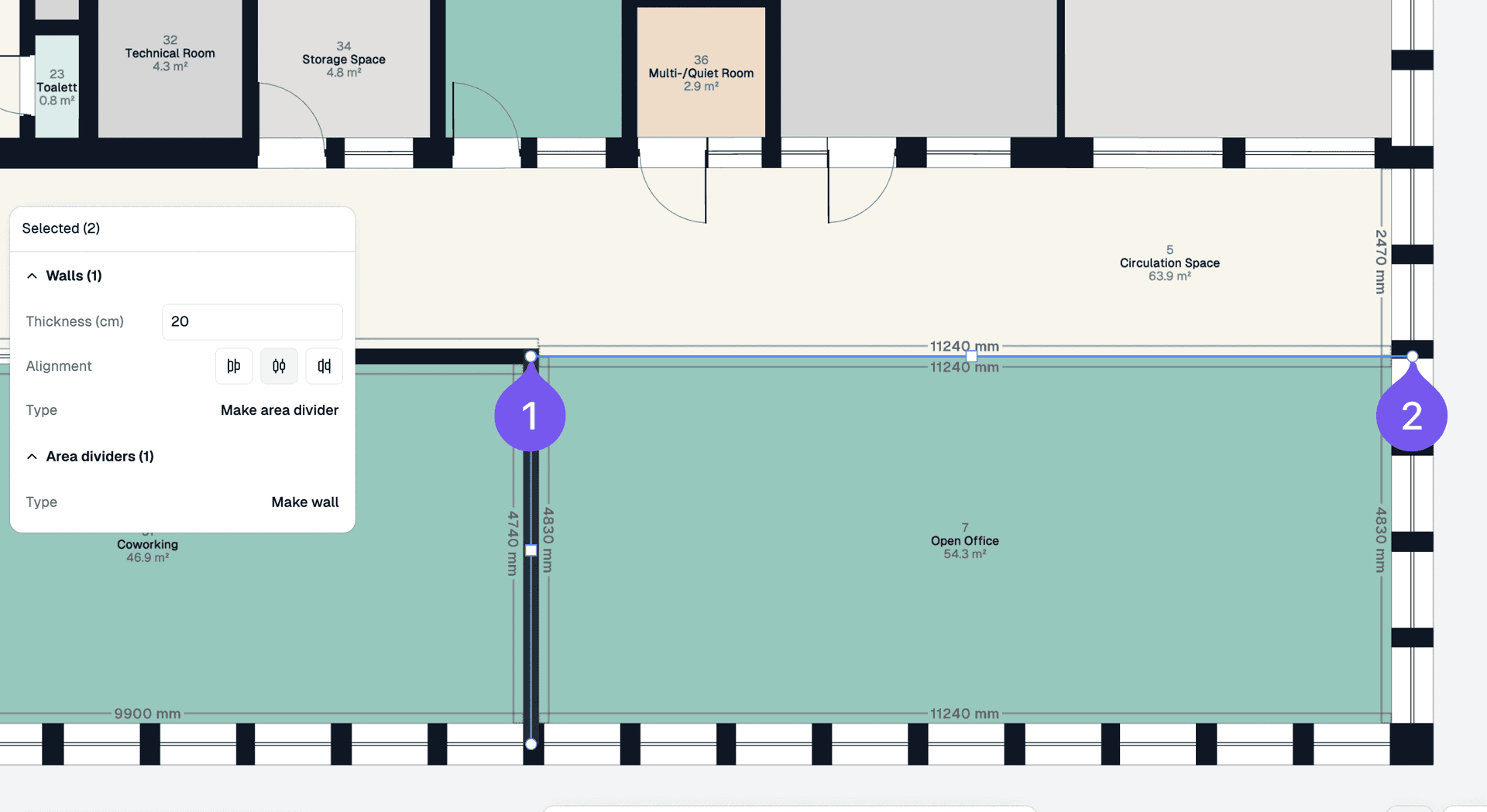
Click on a wall or area divider, or hold down [Shift] and click to select multiple walls. Then press [Delete] or [Backspace] to delete them.