
Areas
Schemes
Manage cleaning profiles for floor plan areas
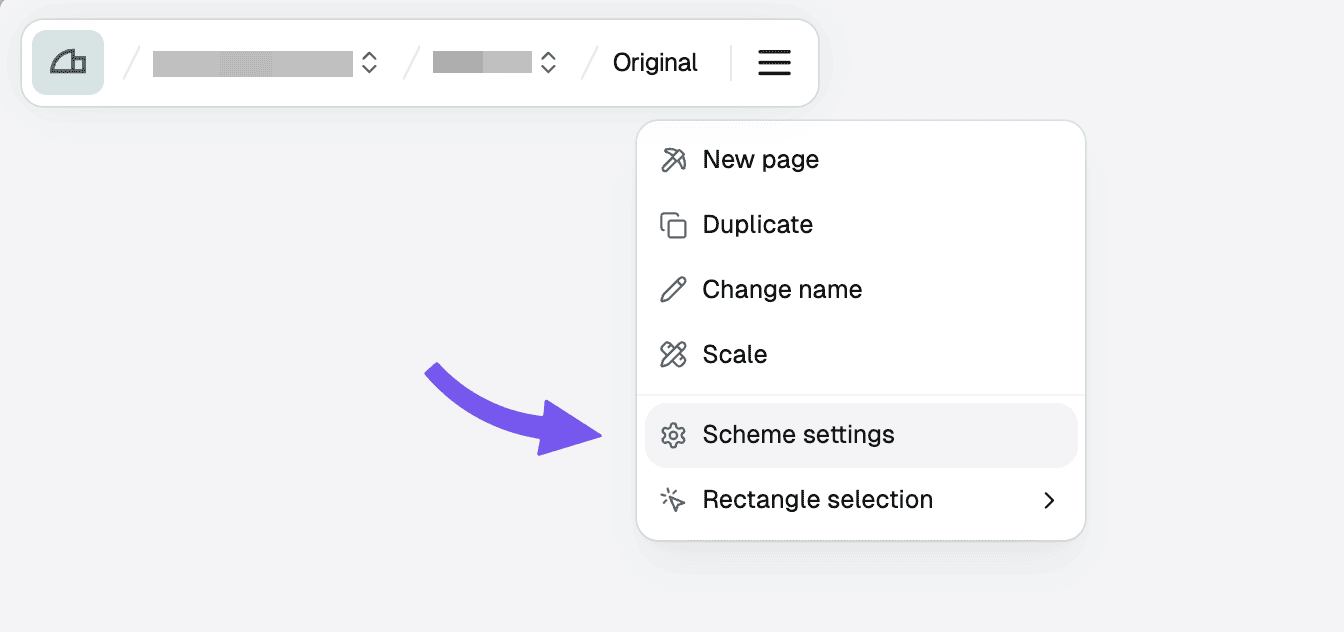
Steps
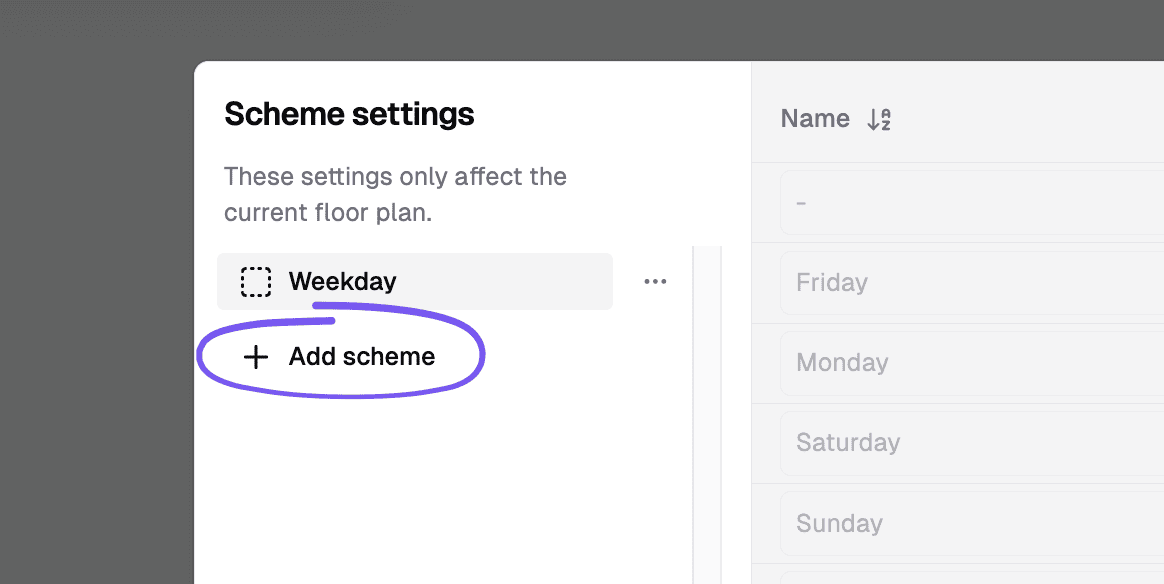
Add a profile
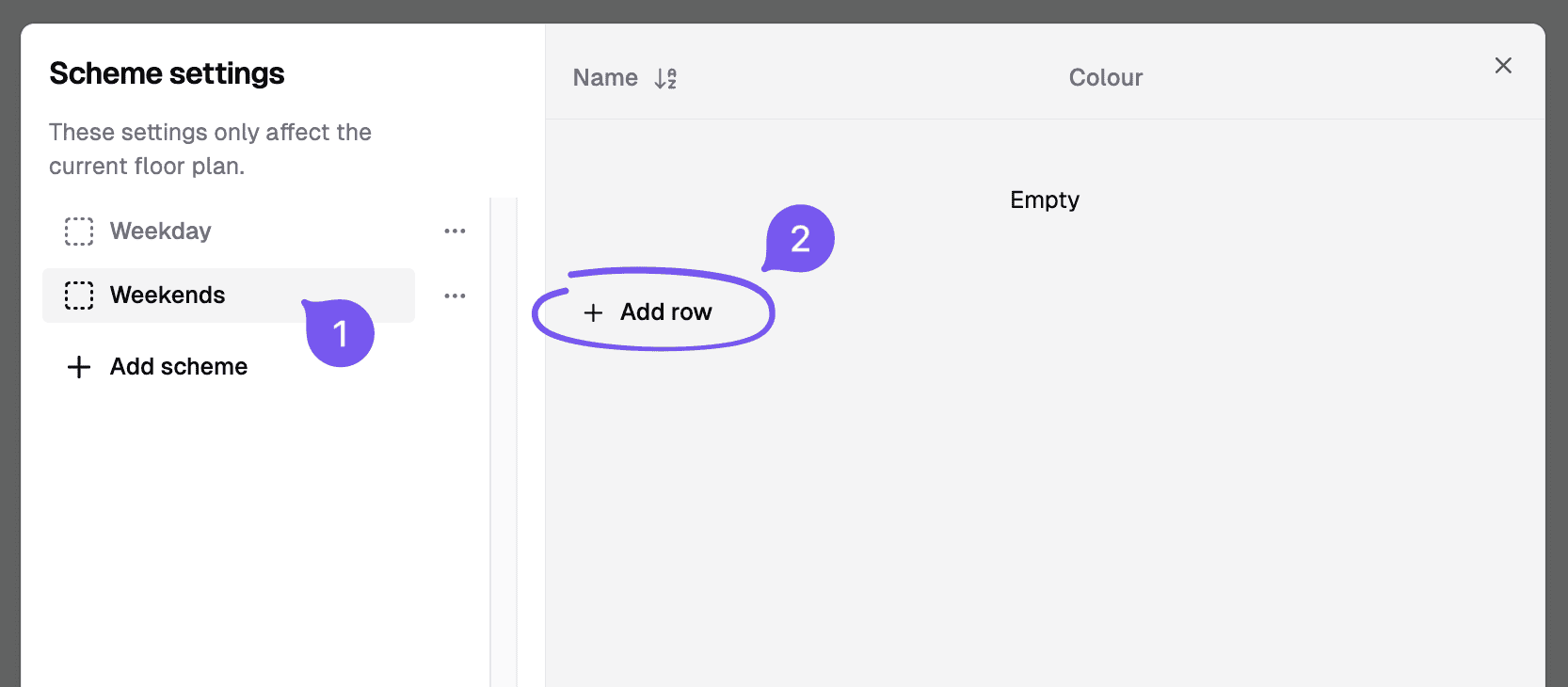
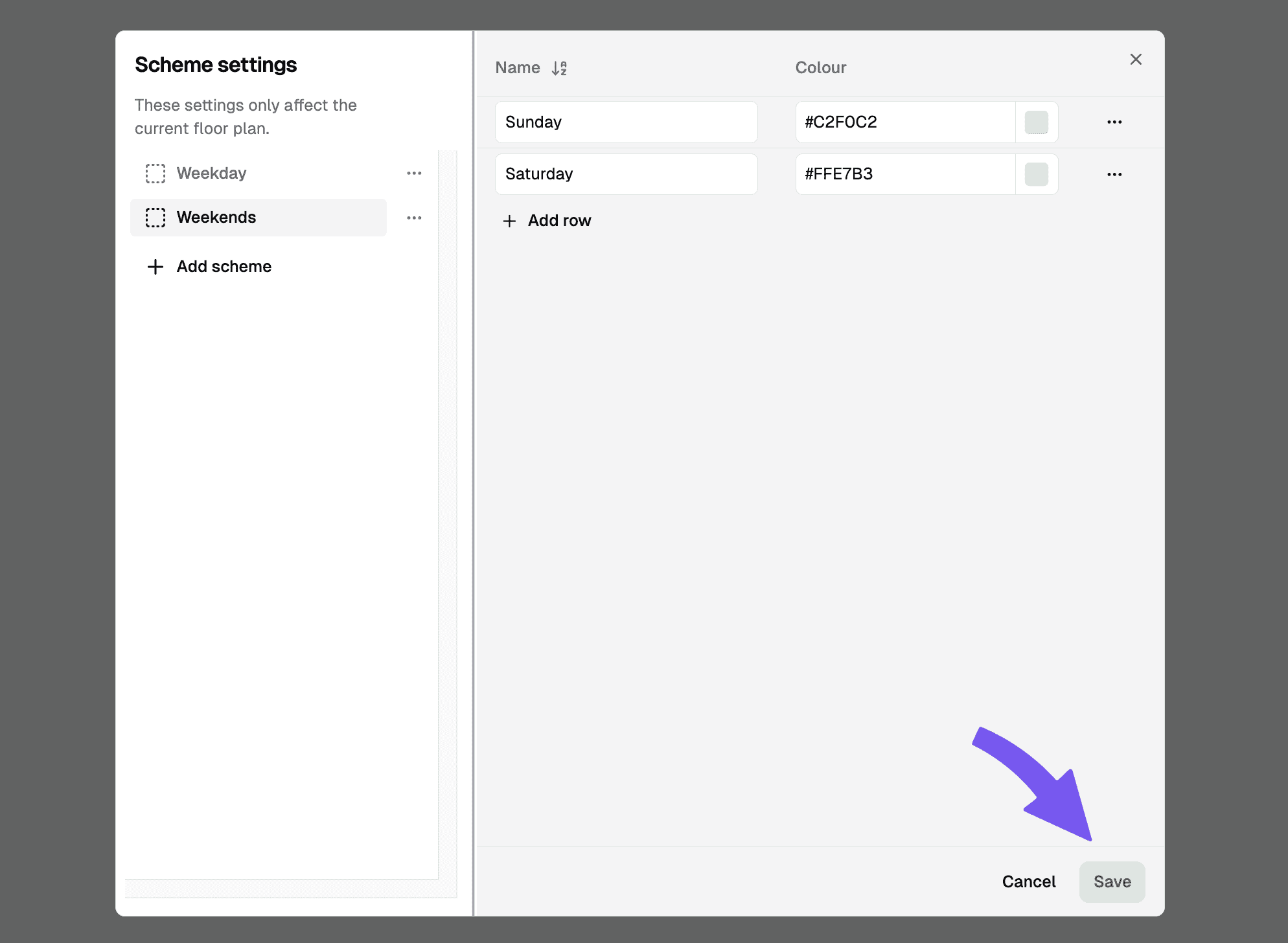
Select the new scheme, and click "Add row" to add a new profile. Input the profile name and colour.
Show cleaning profiles
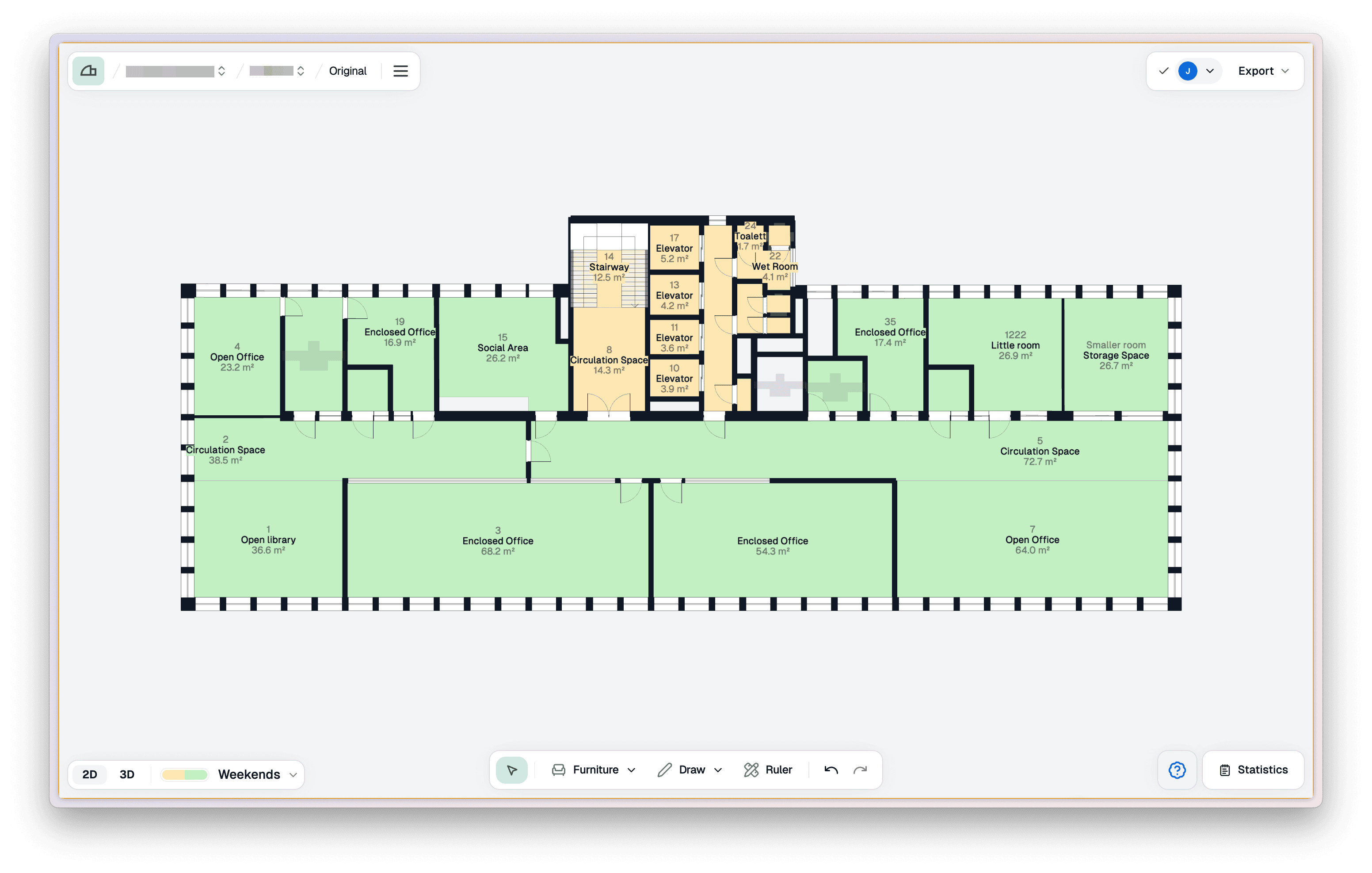
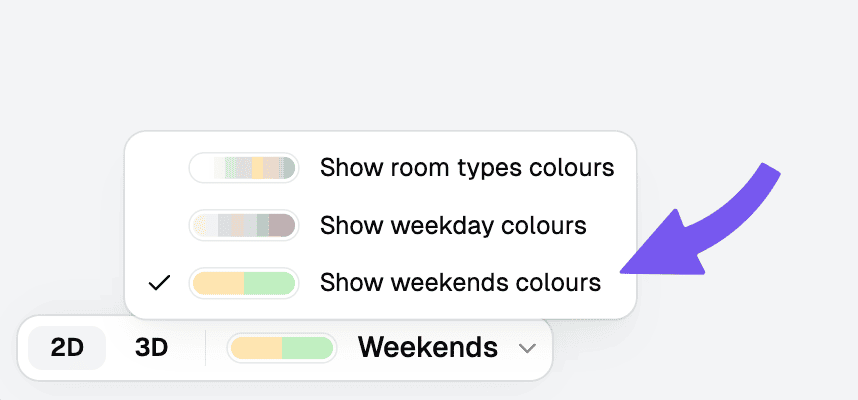
In the bottom left navigation, select the new scheme from the dropdown menu to show the current profiles.
Assign areas to profiles
Select the areas you want to edit, and select the desired profile from the dropdown in the properties panel.
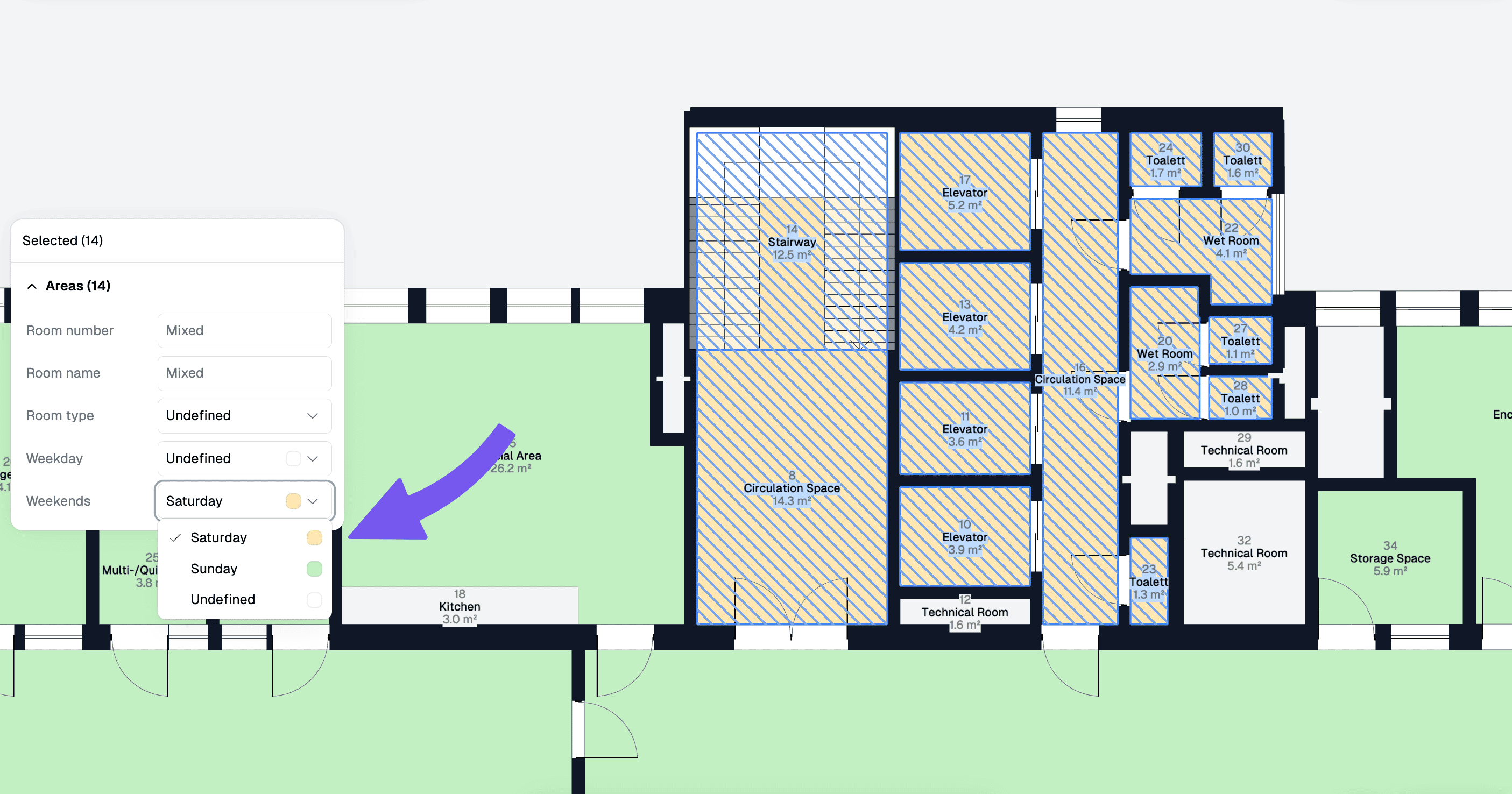
Once you've set up your schemes and assigned areas to them, you can easily manage maintenance schedules and cleaning requirements across your floor plan. The profile colours will help you quickly identify areas with similar cleaning needs and maintenance schedules.