
Create tenant
How to add a new tenant with room plan
Steps
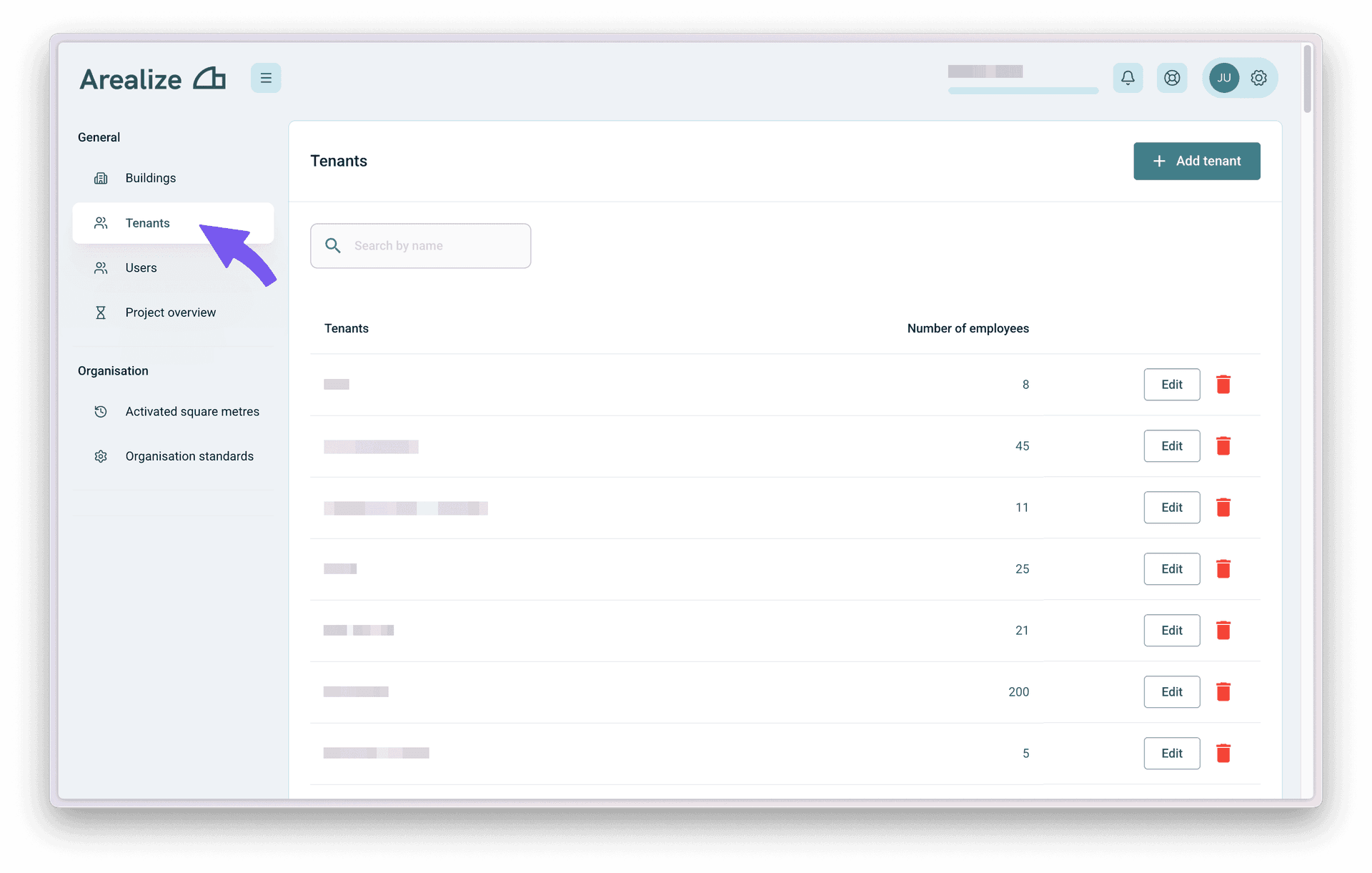
Open 'Tenants' and add a new tenant
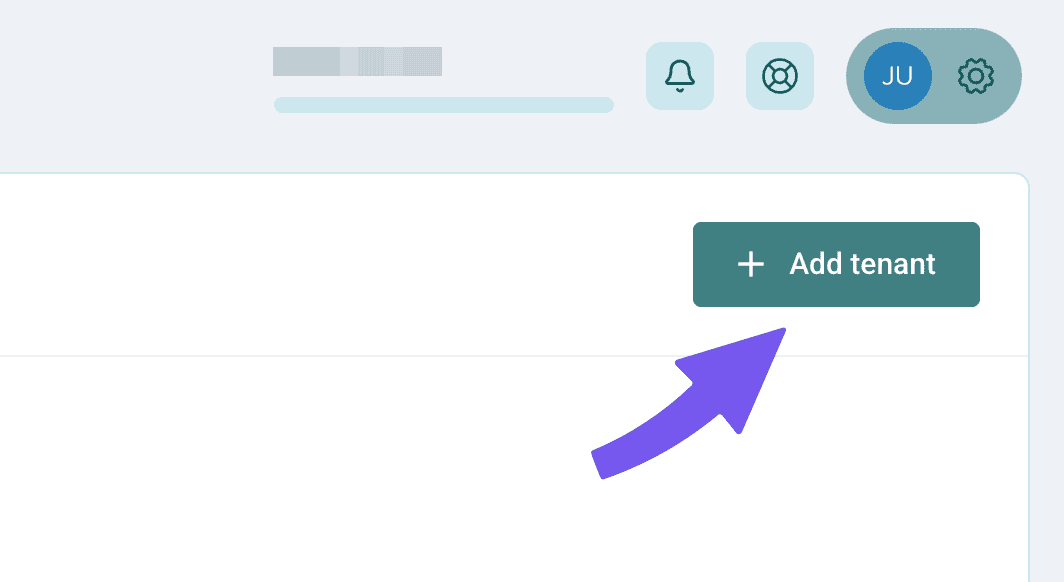
Make sure you have the Tenants tab open in the sidebar, then click the "New Tenant" button to get started.
Fill in details
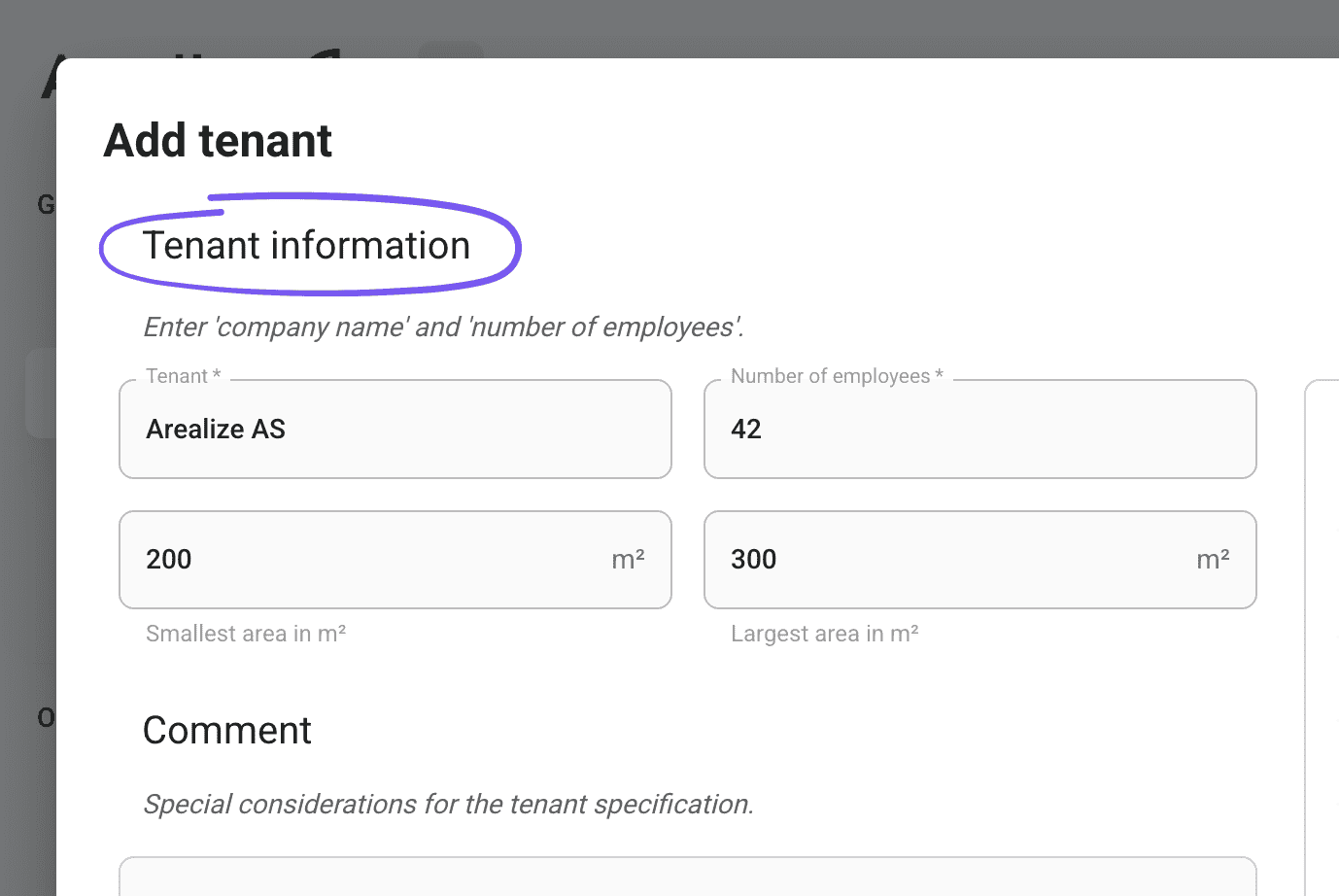
Enter the tenant's name and number of employees. You can choose to specify area constraints for the tenant by entering the minimum and maximum area.
Edit 'Room list'
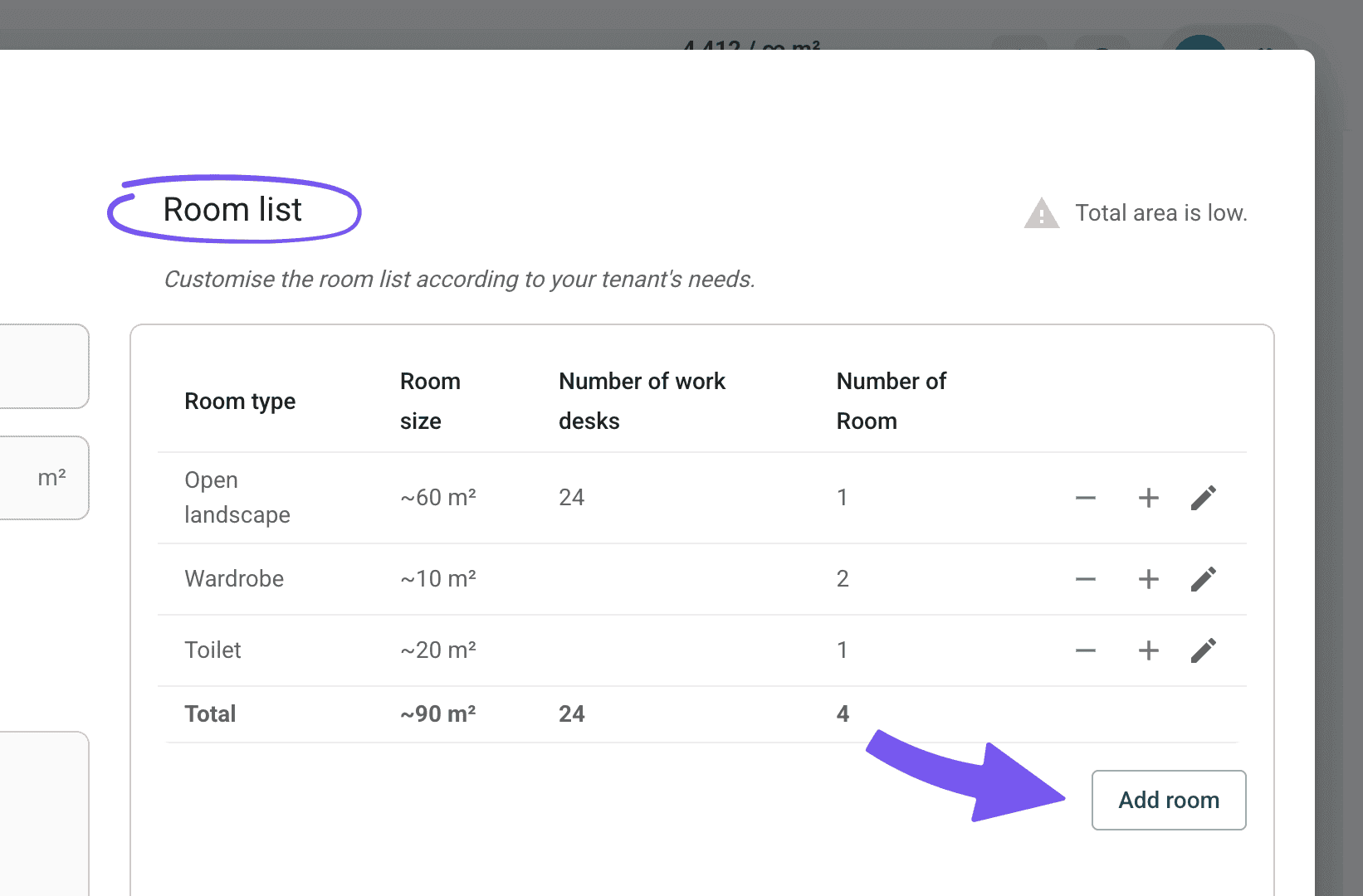
Click "+" and "-" to add or remove the number of rooms. To add a new room, select "Add Room".
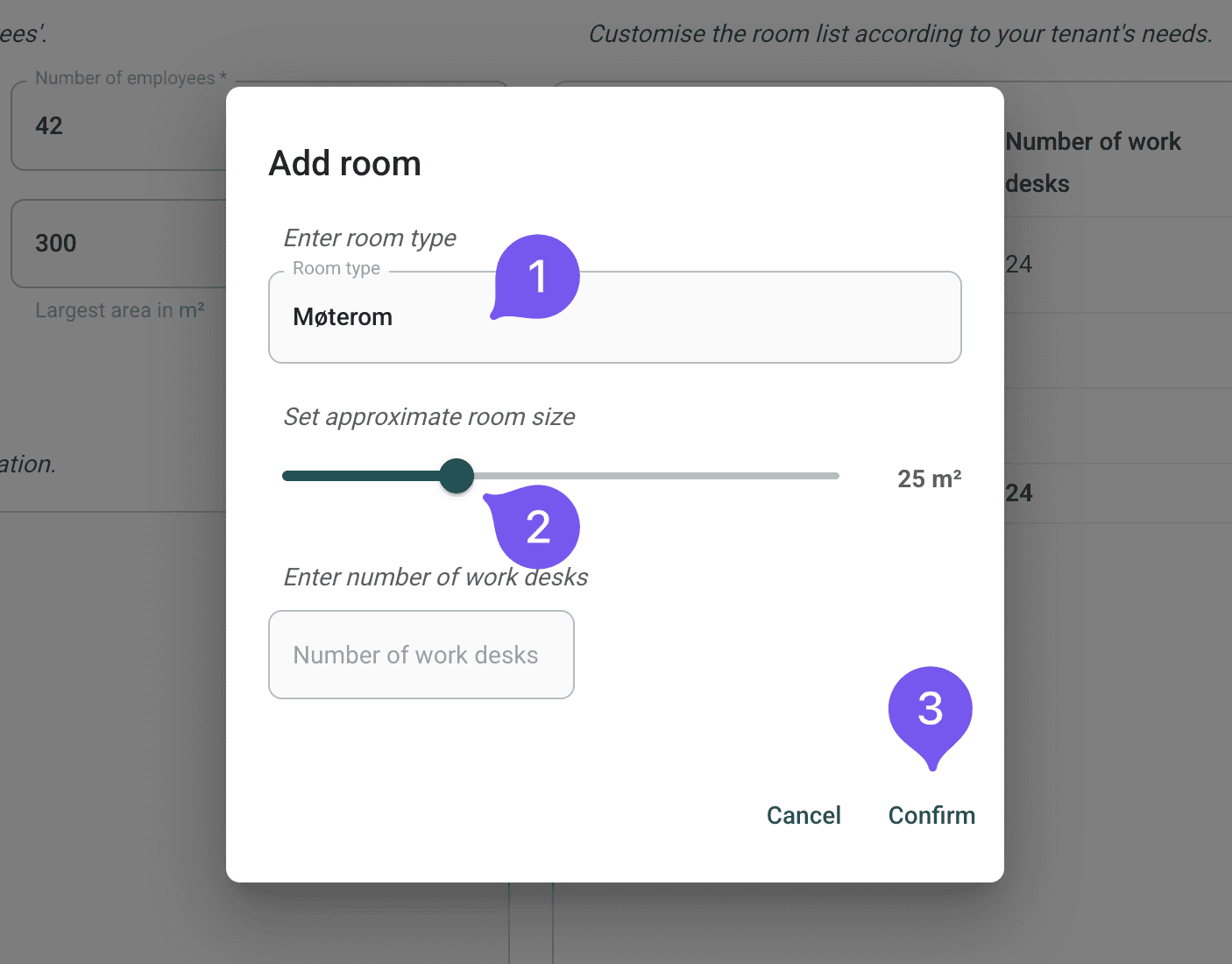
Add room
Specify a room type, approximate room size, and optionally the number of workstations. Click "Confirm" to add the room.
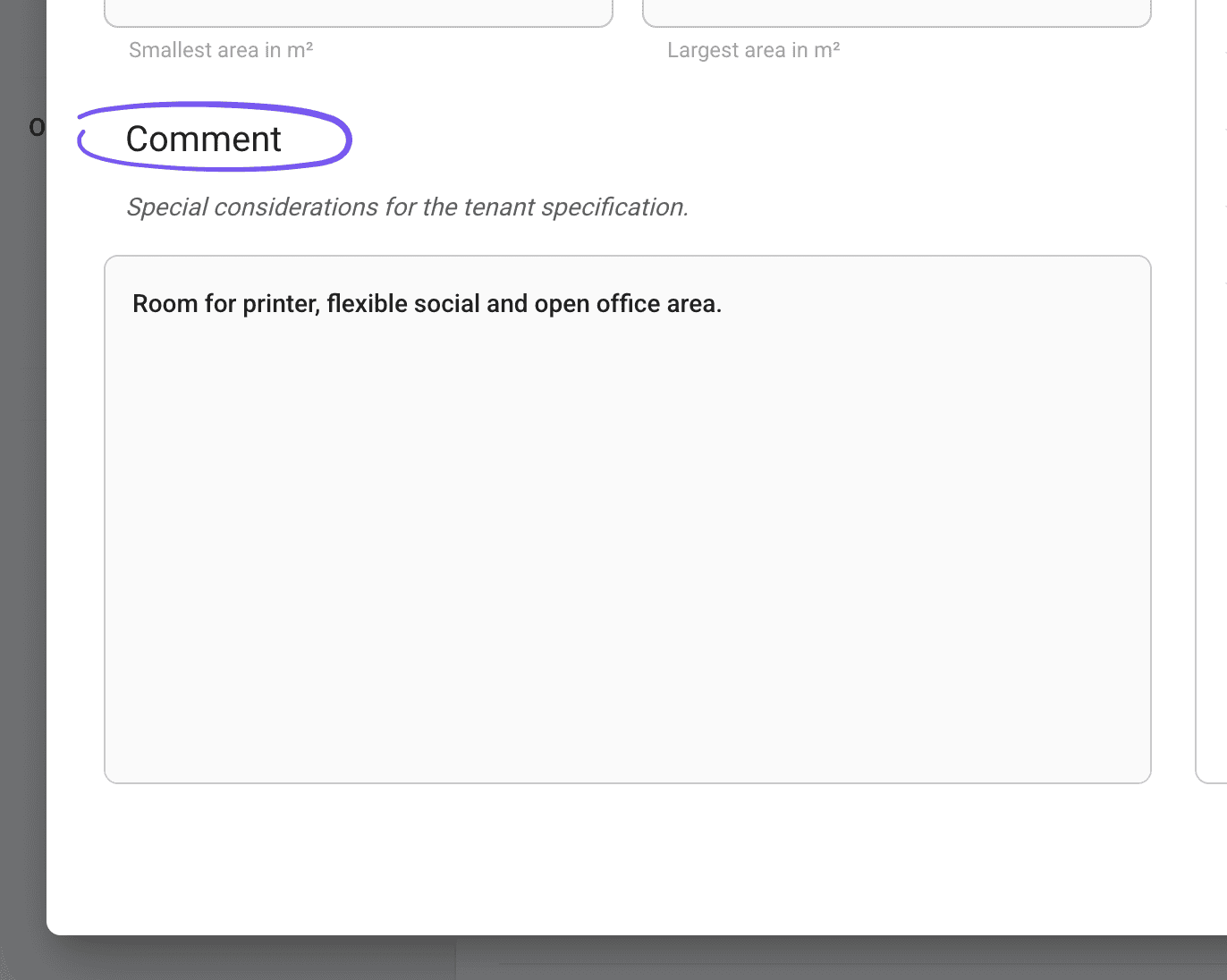
Add comment
If there are specific needs not listed in the room list, you can write them in the comments field. Click "Confirm" to add the tenant requirement.
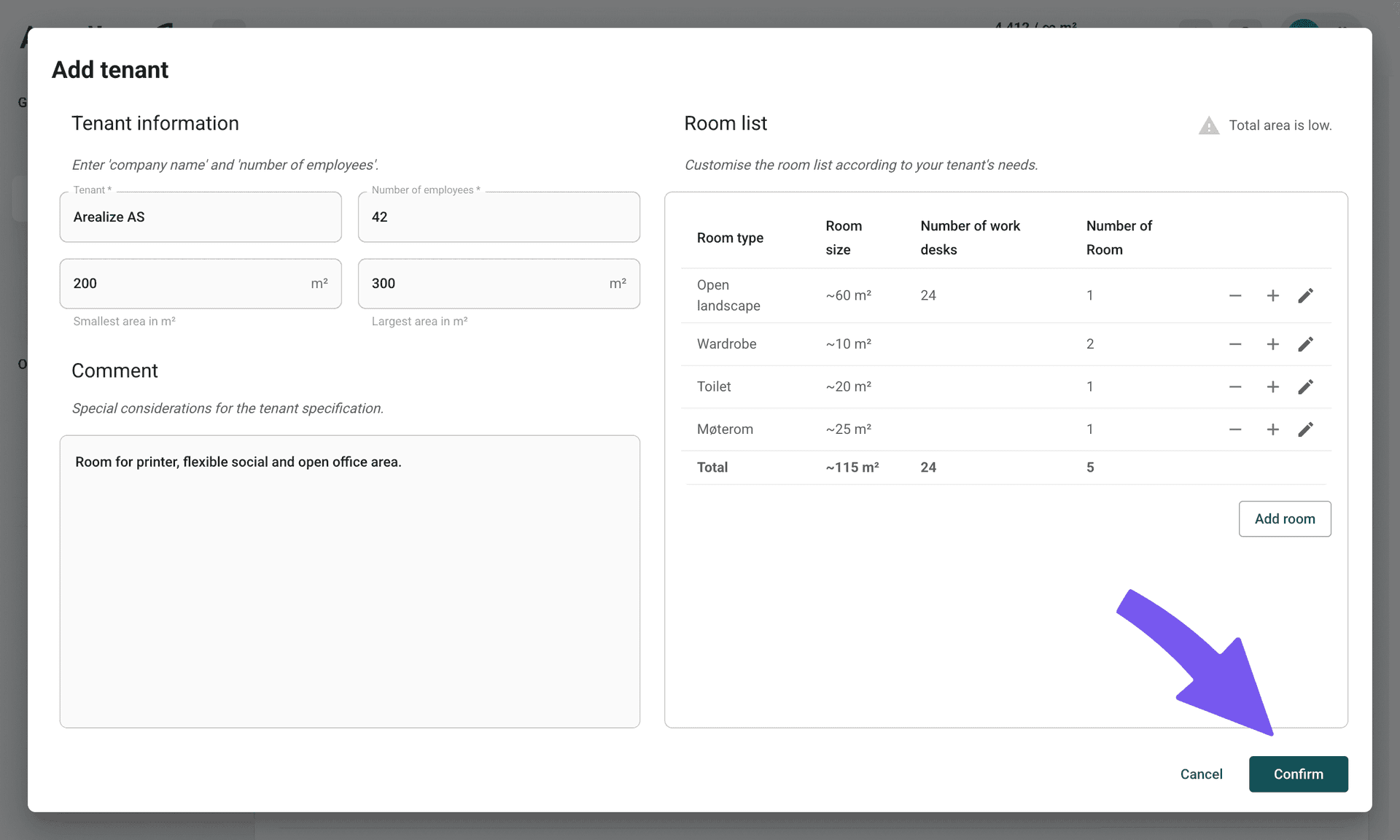
Confirm and create the tenant profile
Once you have filled in all the required details, click "Confirm" to create the tenant profile.
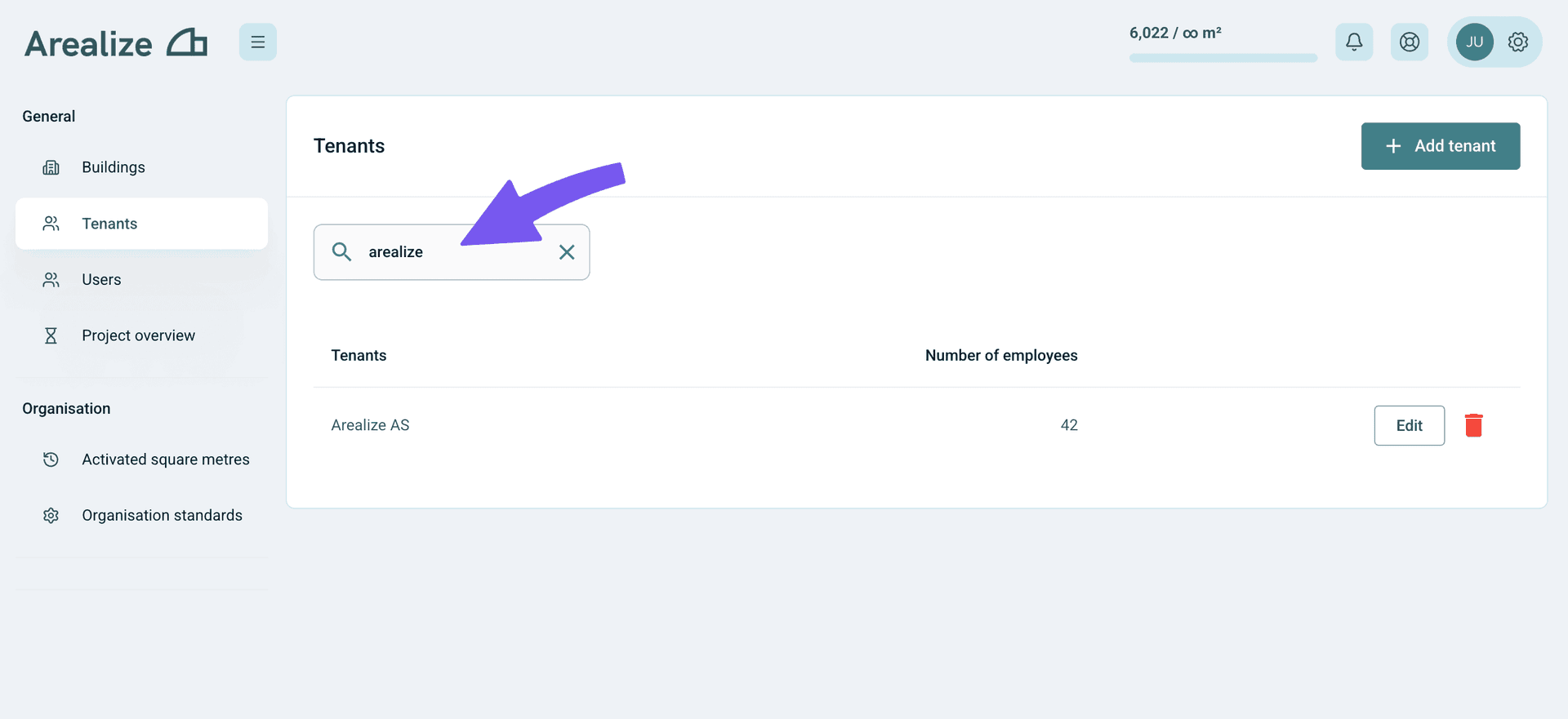
Search and find tenant profiles
Use the search bar to find specific tenant profiles. Type the tenant name to filter and locate the profile you need.
Troubleshooting
I want to add or remove rooms after creating the tenant
You can always edit the tenant after creation by searching for the tenant name and clicking "Edit". This allows you to add or remove rooms, modify area constraints, and update other details as needed. Go to Edit tenant for more details.