Collections and assets
Every collection, asset, level and floor plan in one place
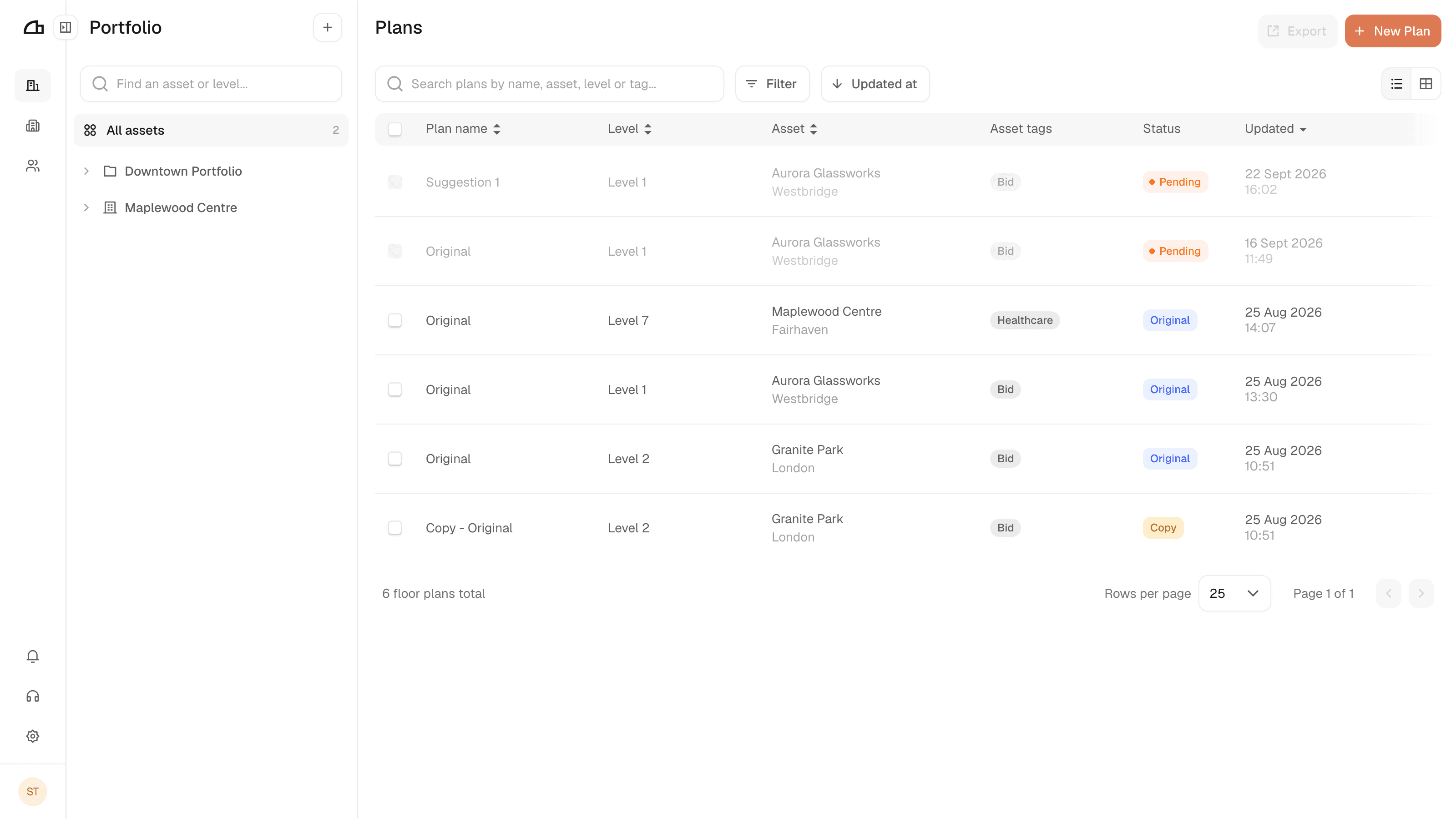
Portfolio is where your floor plans are organised. The tree on the left holds your collections, assets and levels, and the table on the right lists the floor plans that sit beneath whatever you have selected. With All assets selected, every plan in the organisation is listed.
Hold Shift while clicking to select more than one asset or collection.
Collections
Collections are optional. If you only have a handful of assets, you can leave them all at the top level.
Creating a collection
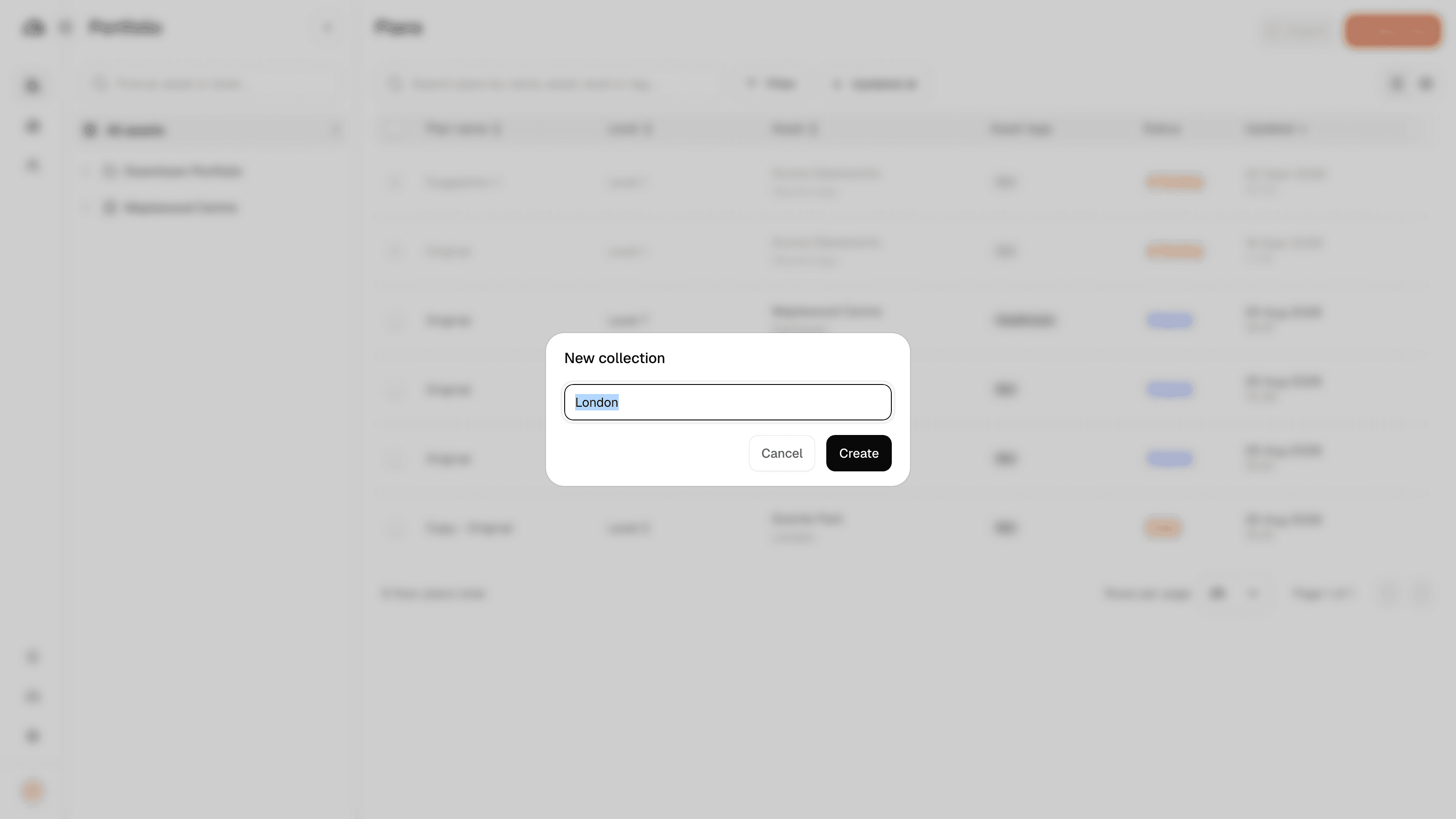
Use + at the top and choose Collection.
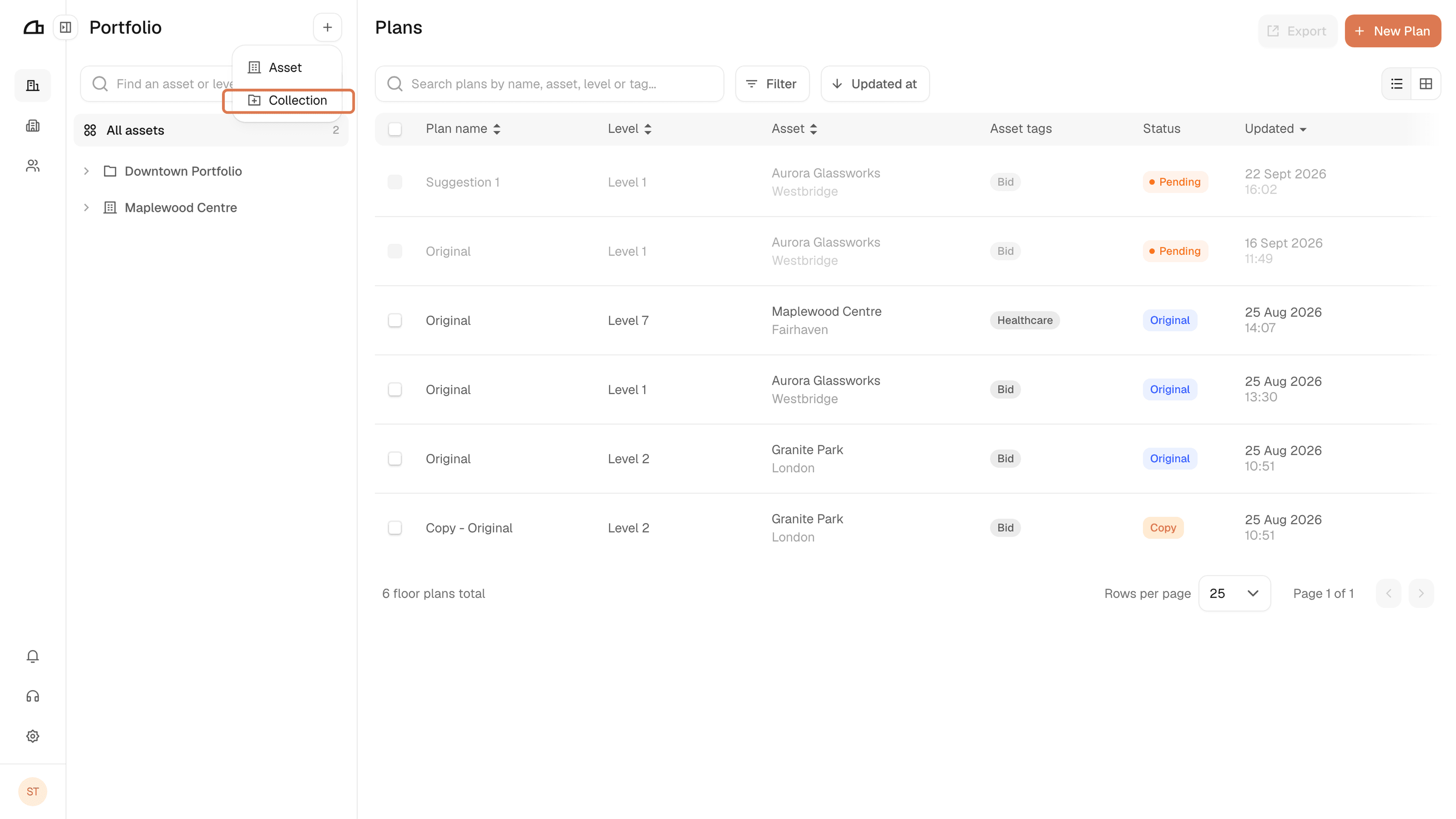
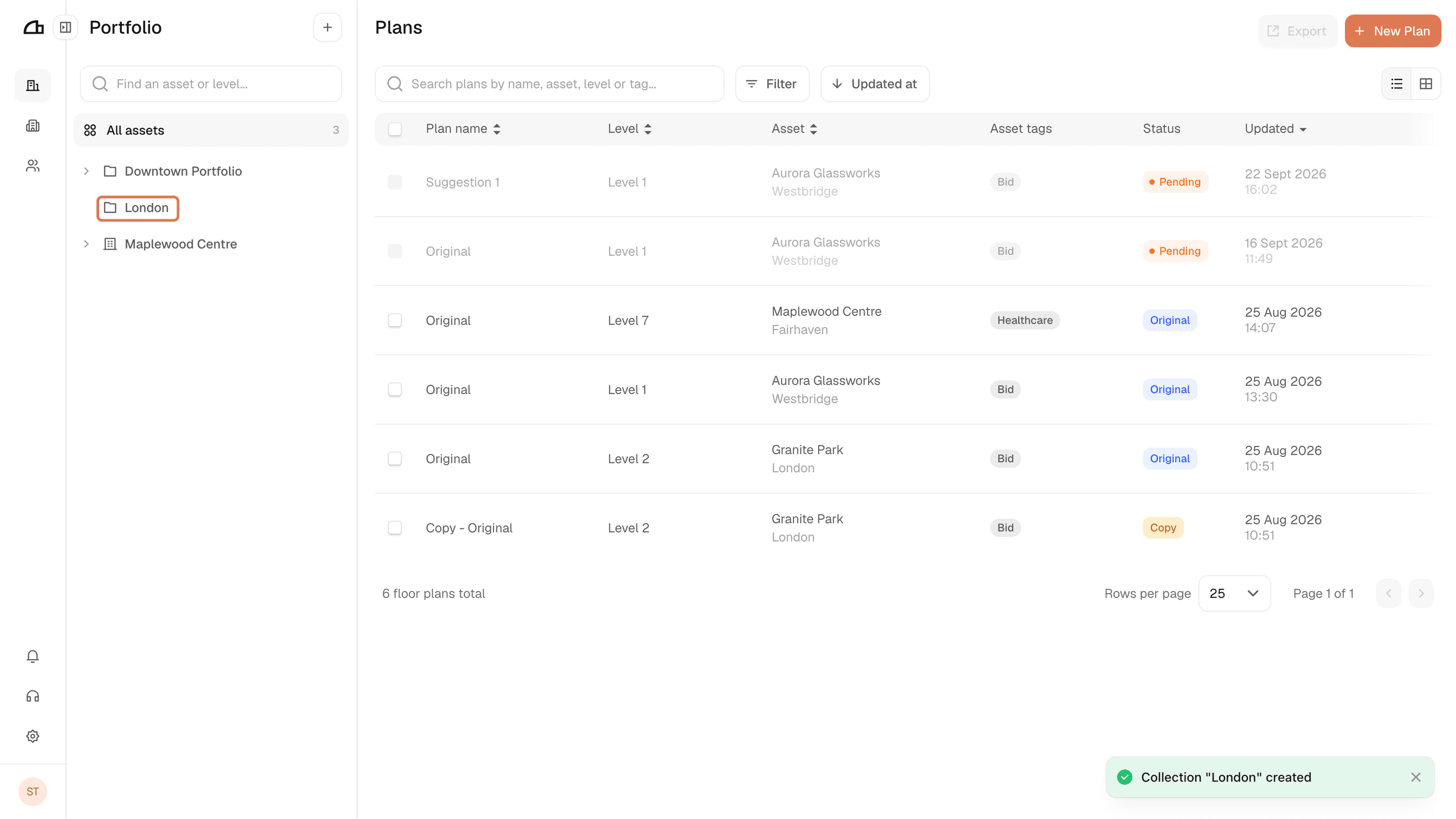
Give it a name and click Create.
Nesting a collection
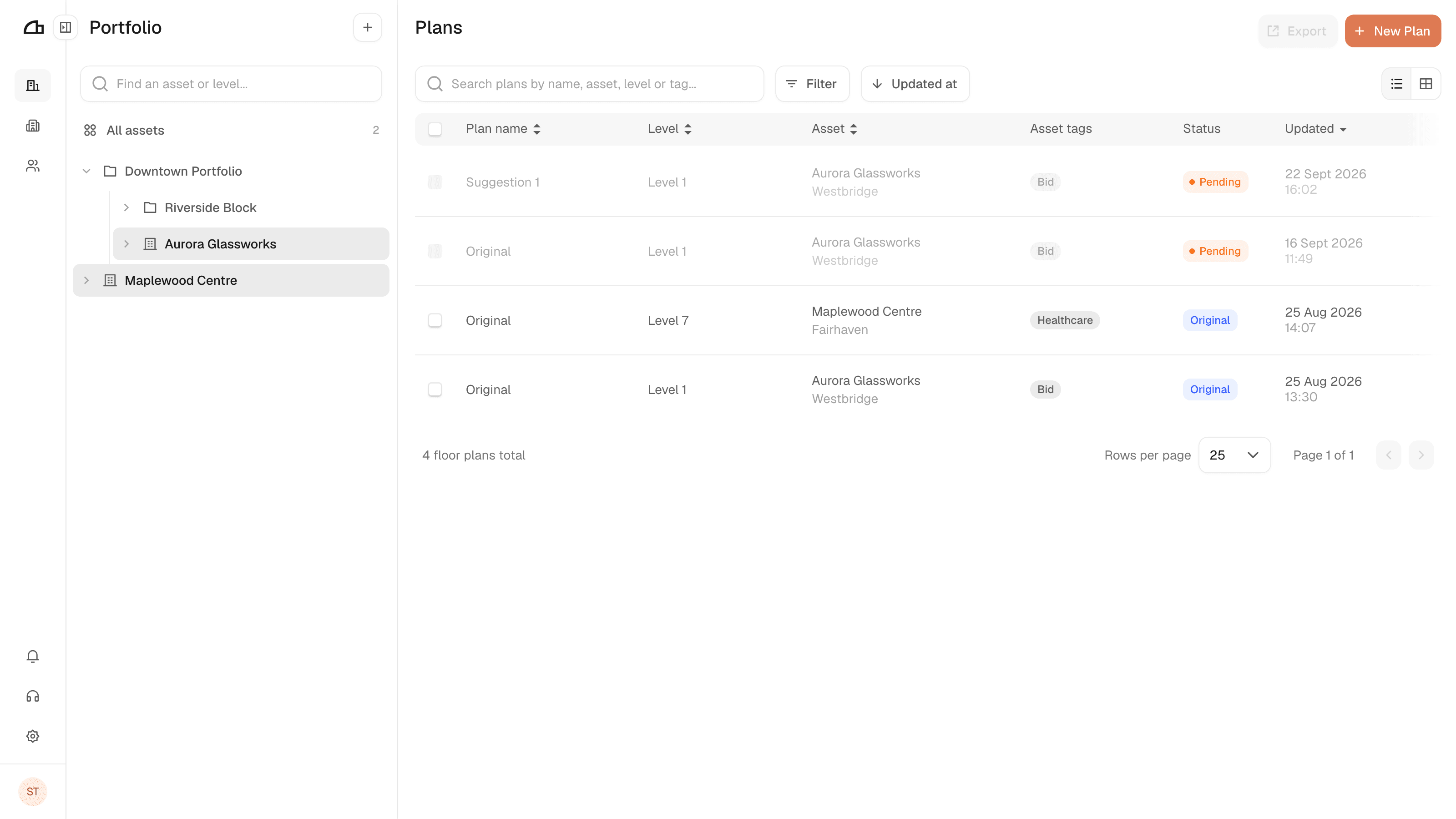
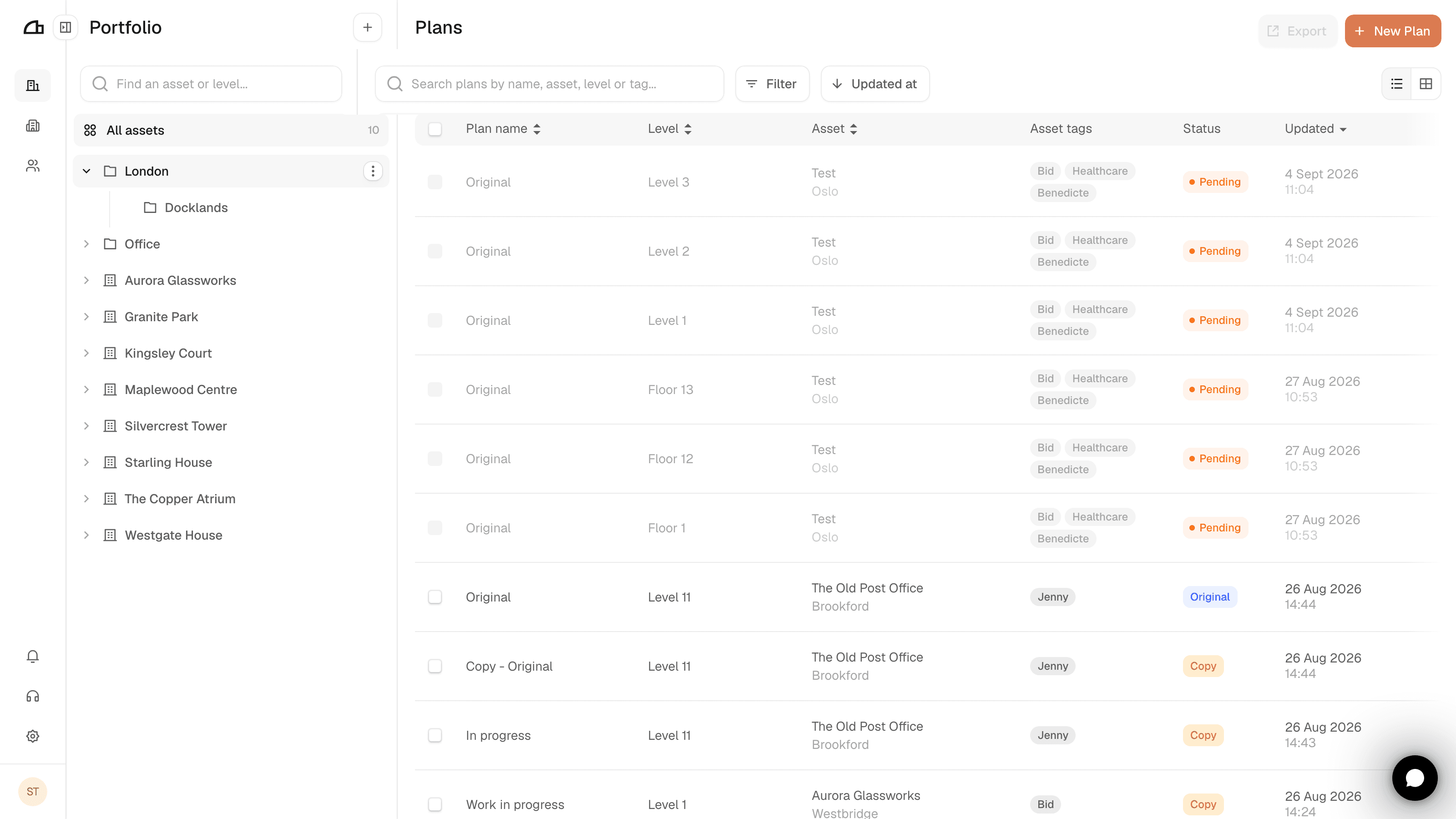
New collections start at the top level. To nest one, drag it onto the collection you want it inside. Assets move the same way.
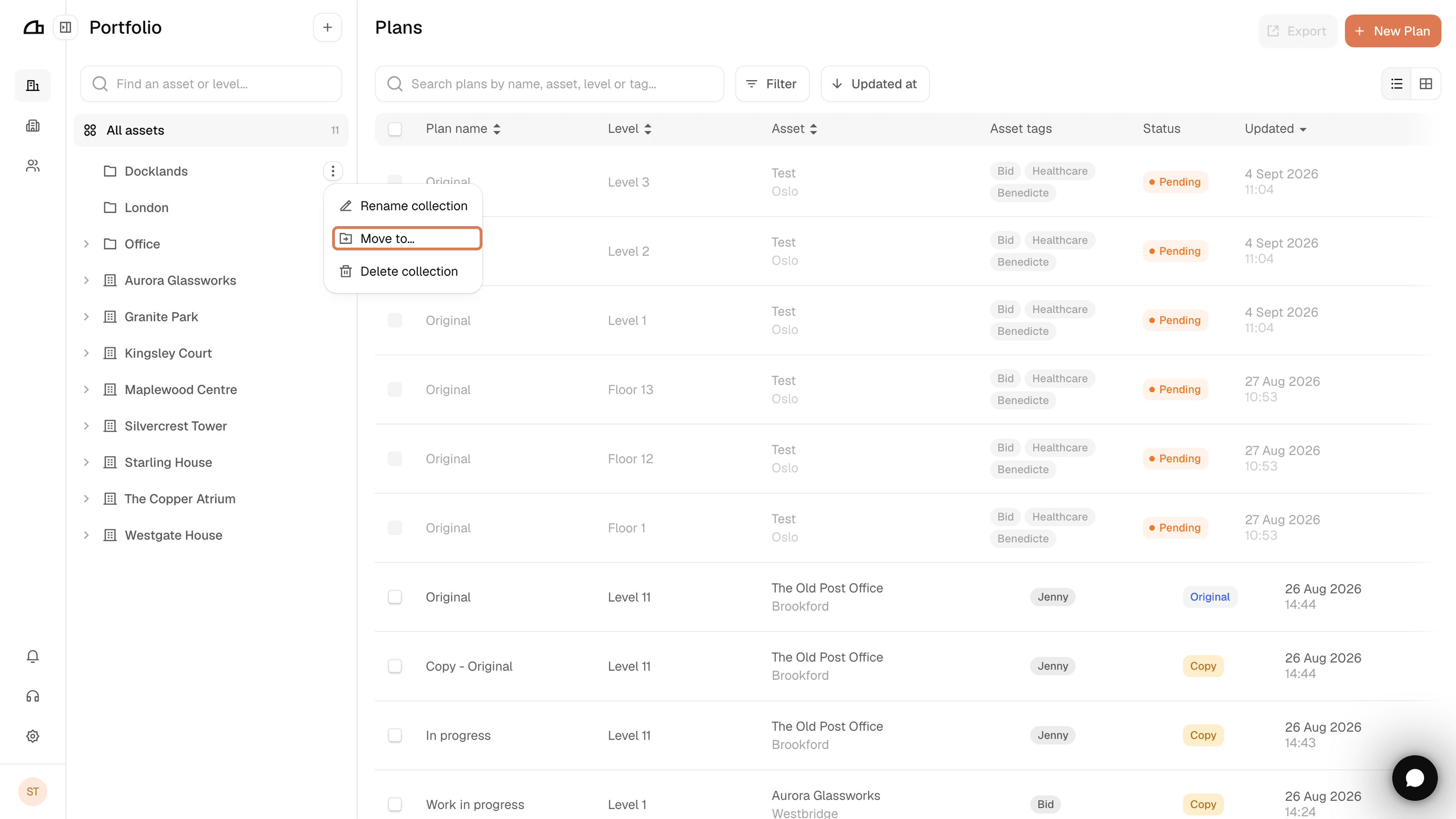
You can also use Move to… from the item's more options menu.
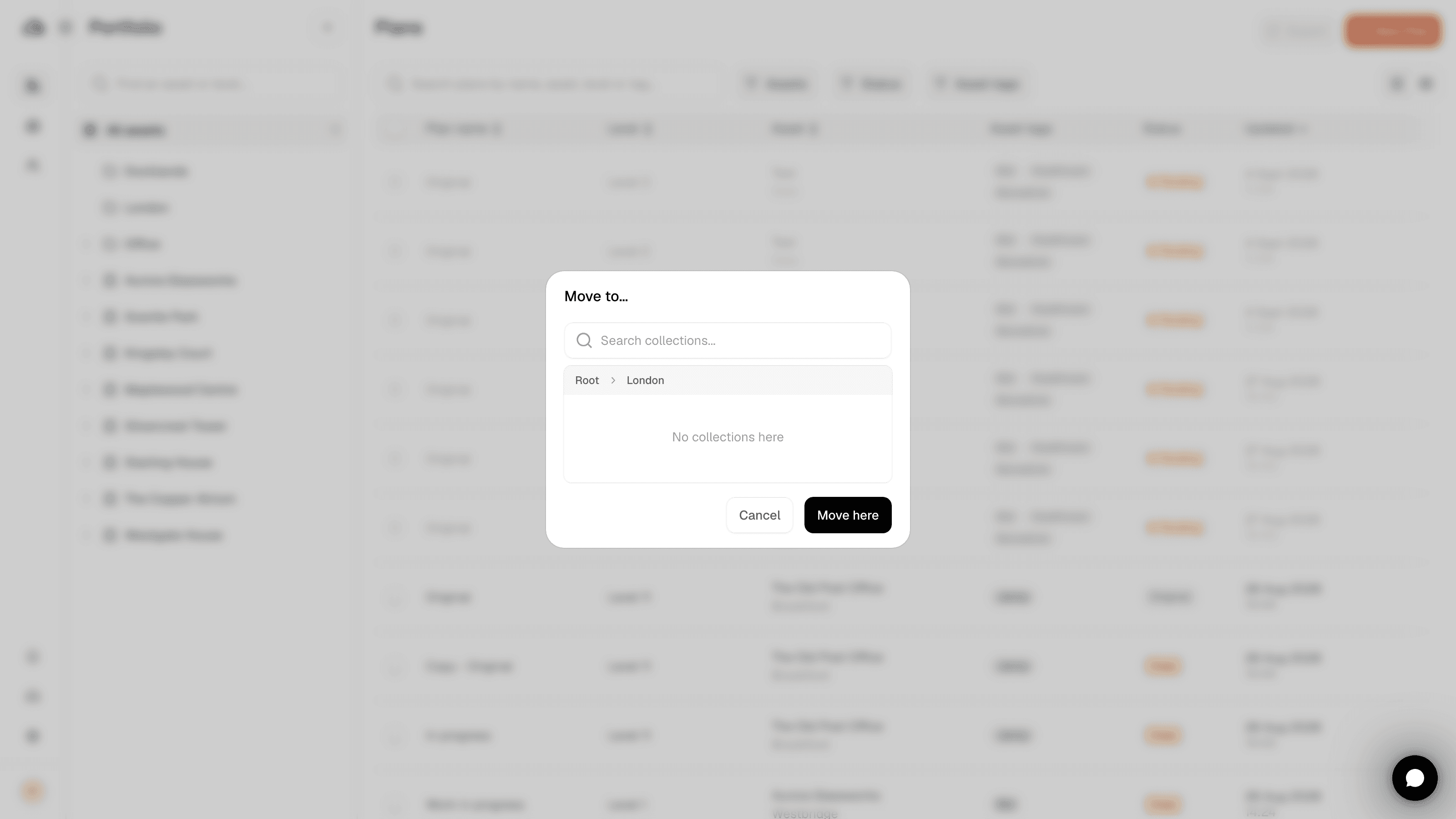
The collection now sits inside its parent, and expanding the parent shows it.
Assets
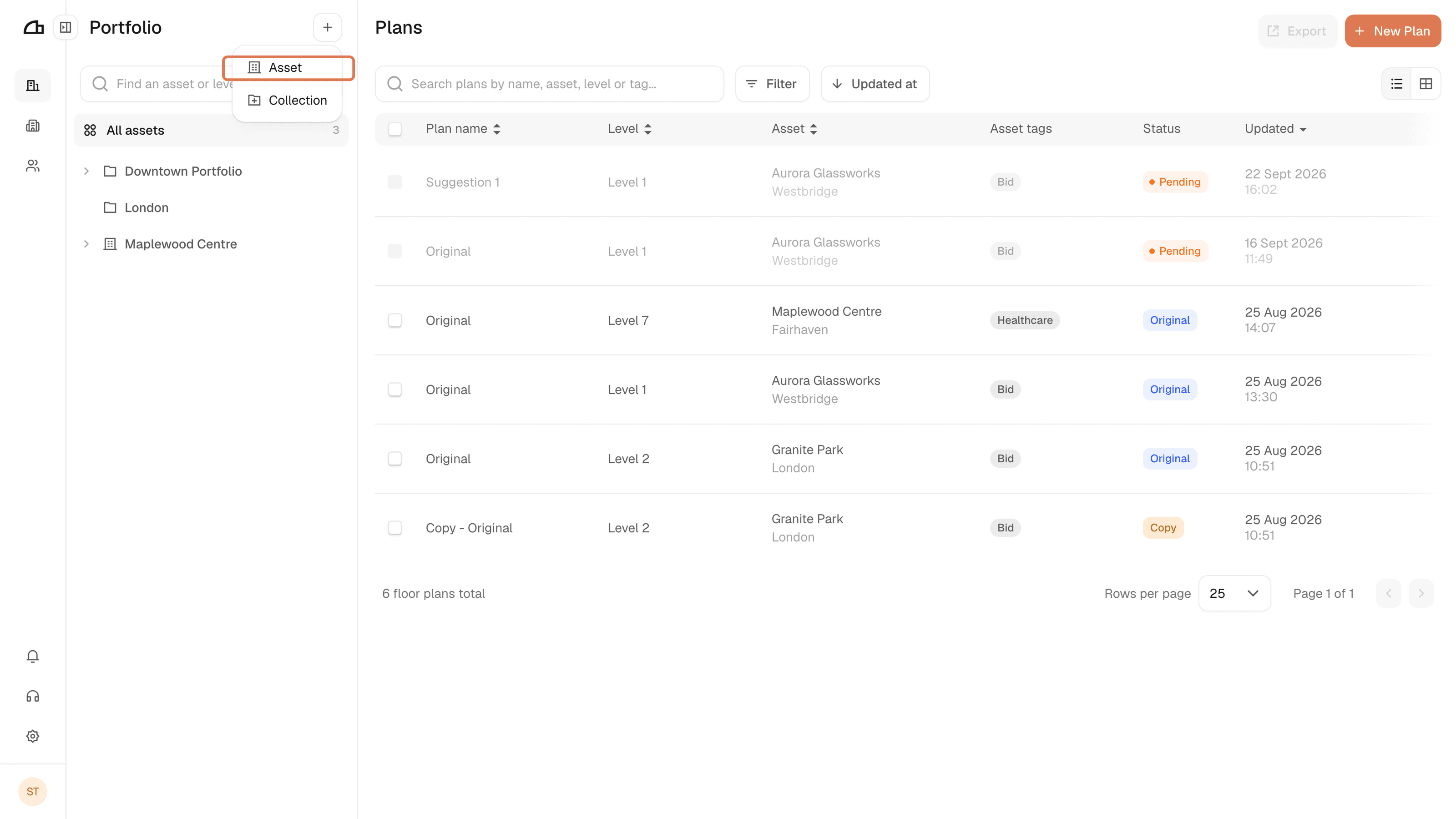
Use + at the top of the tree and choose Asset to create one, then add drawings to it with New Plan.
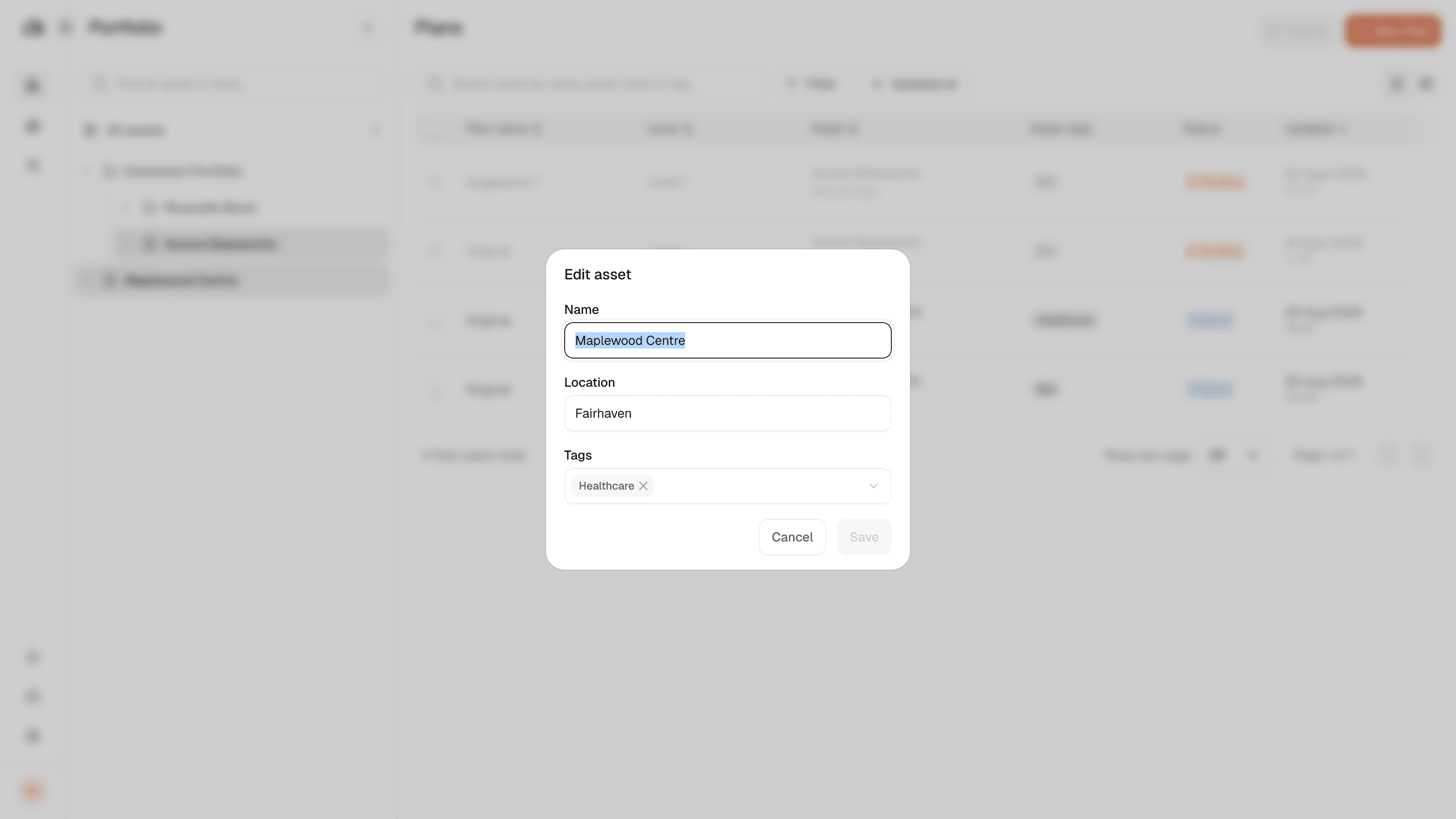
Edit asset is where an asset's name, location and tags are set. Asset tags apply to every plan under that asset, and can be filtered on from the table.
More options
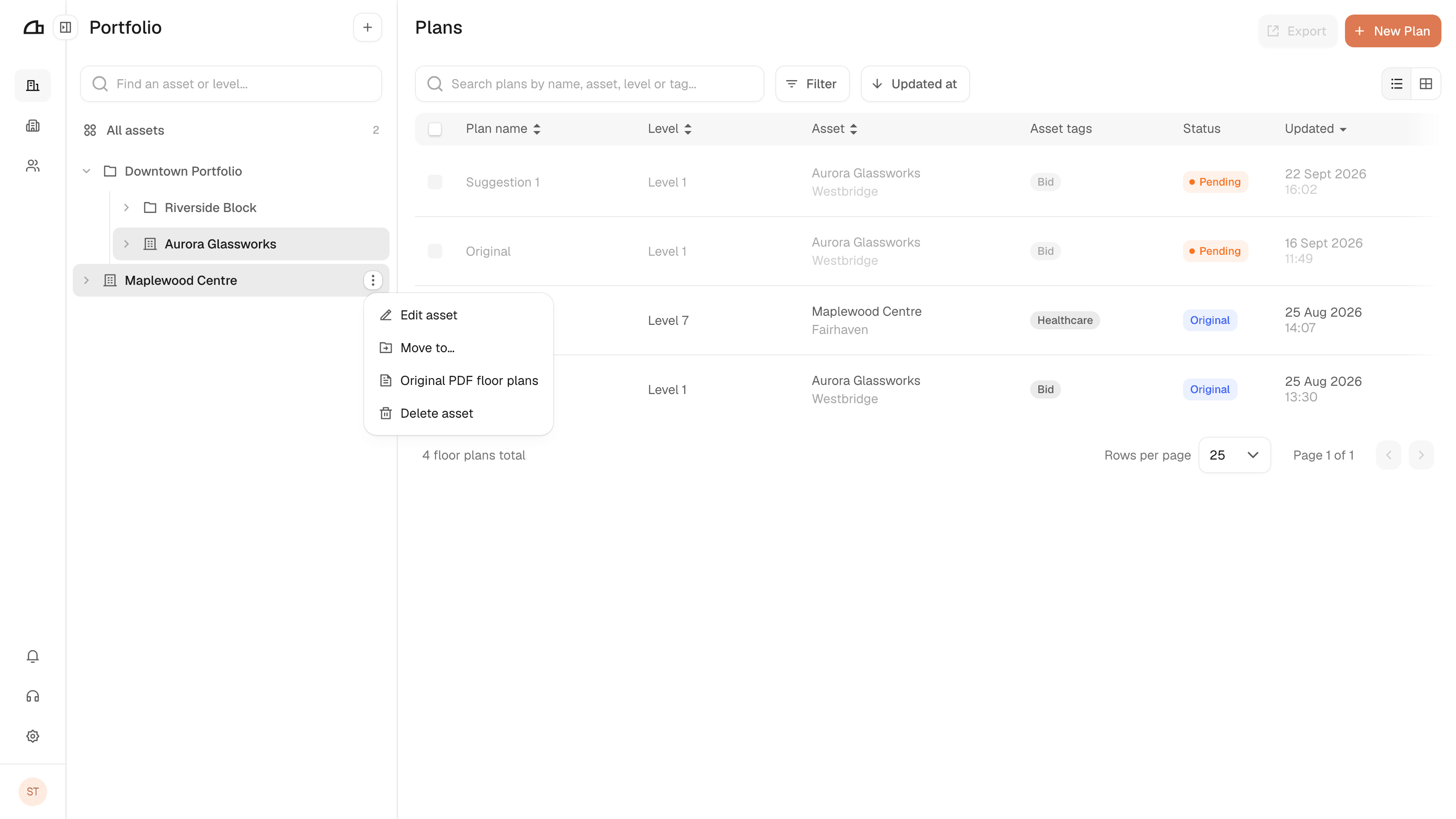
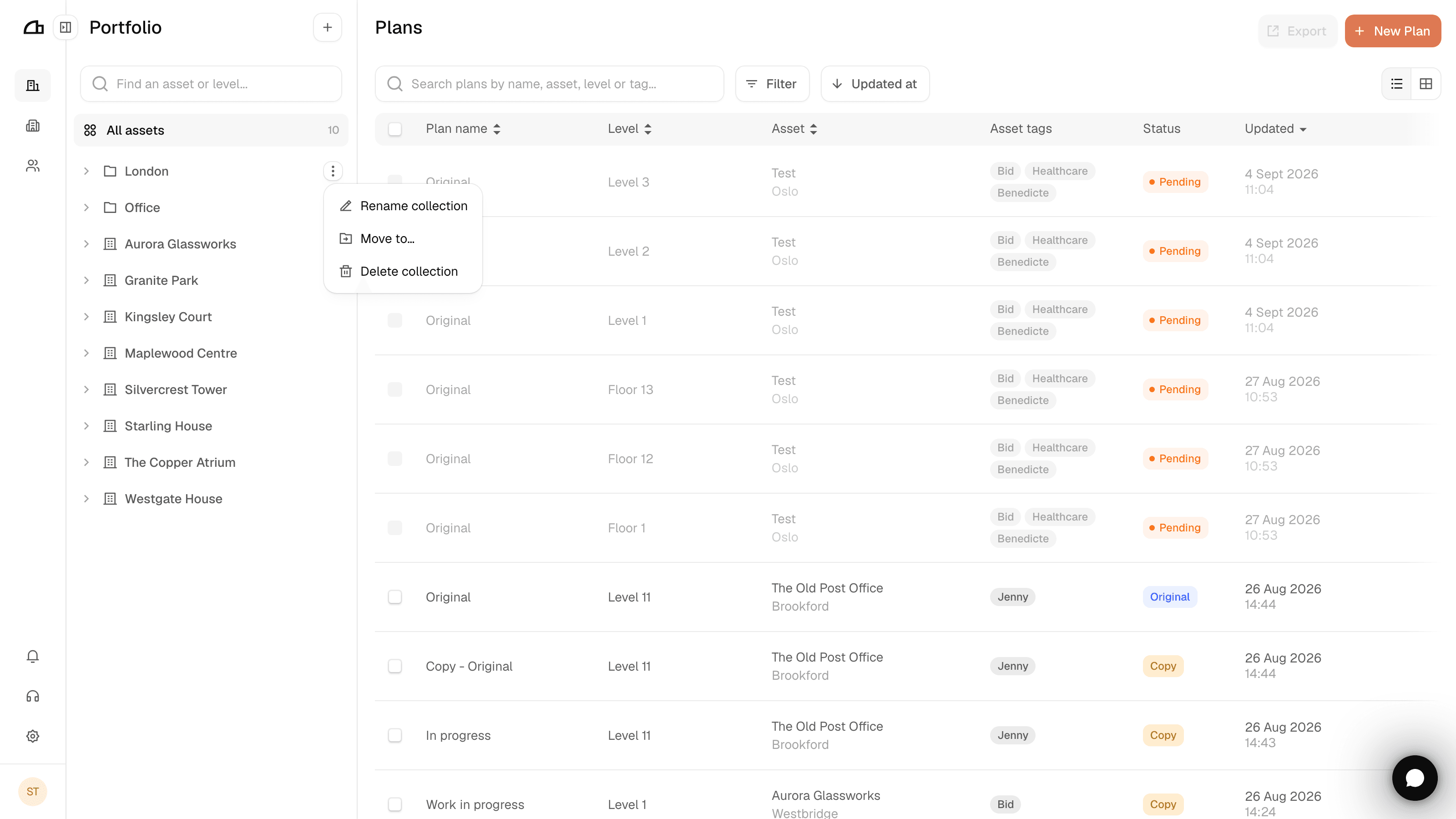
Every collection, asset and plan has a more options menu, and each offers a different set of actions.
Collections offer Rename collection, Move to… and Delete collection. Deleting a collection does not delete what is inside it.
Assets offer Edit asset, Move to…, Original PDF floor plans and Delete asset.