Tools
Furniture
Add furniture to your floor plan
Steps
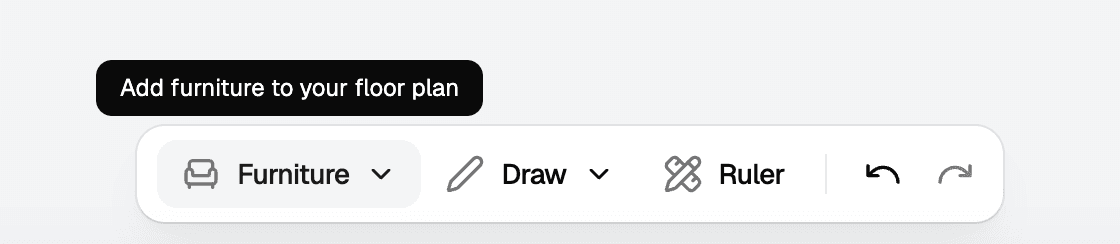
Open the furniture panel
Click the "Furniture" button in the bottom centre toolbar to open the furniture panel.
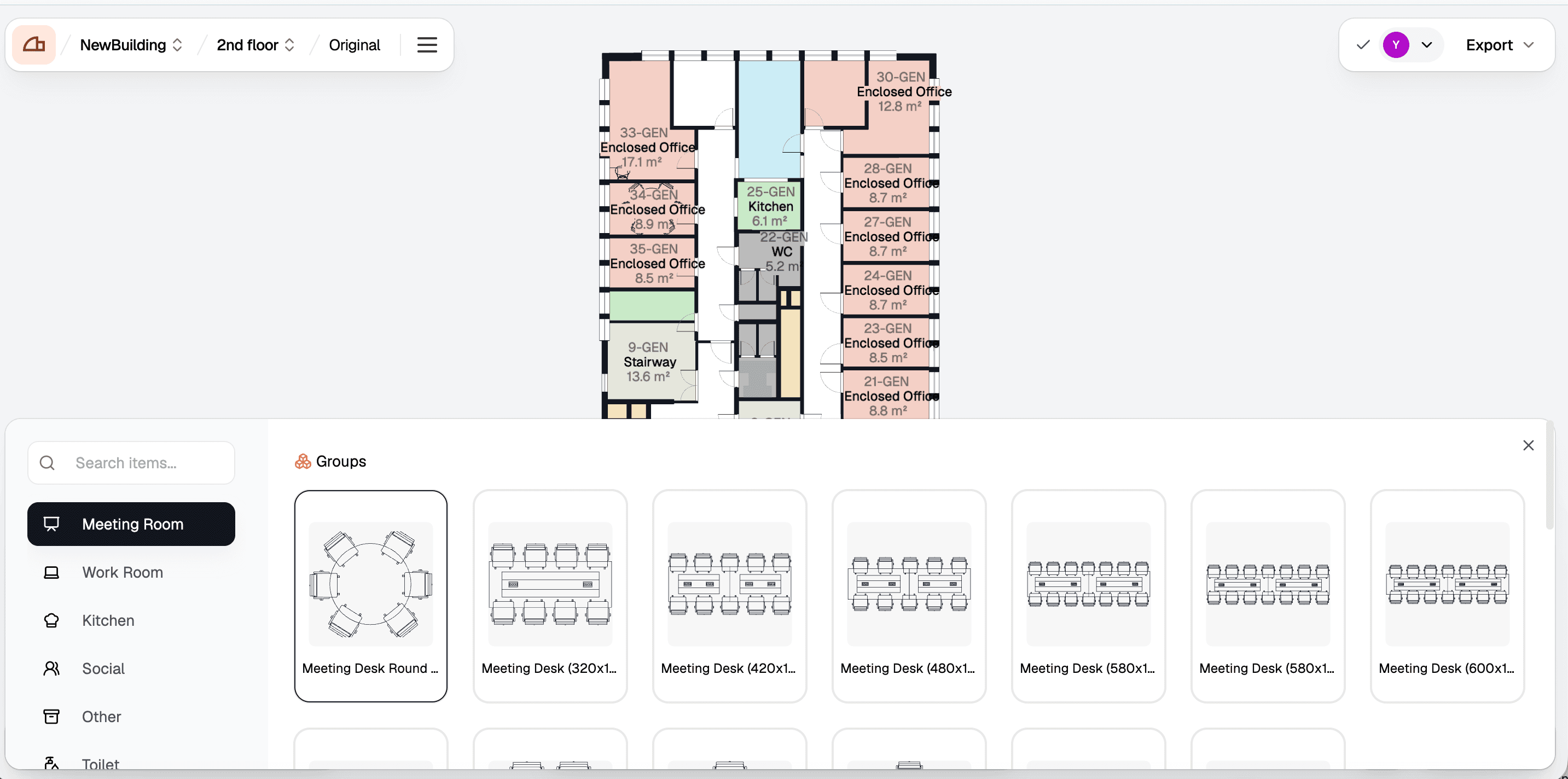
Place a furniture set
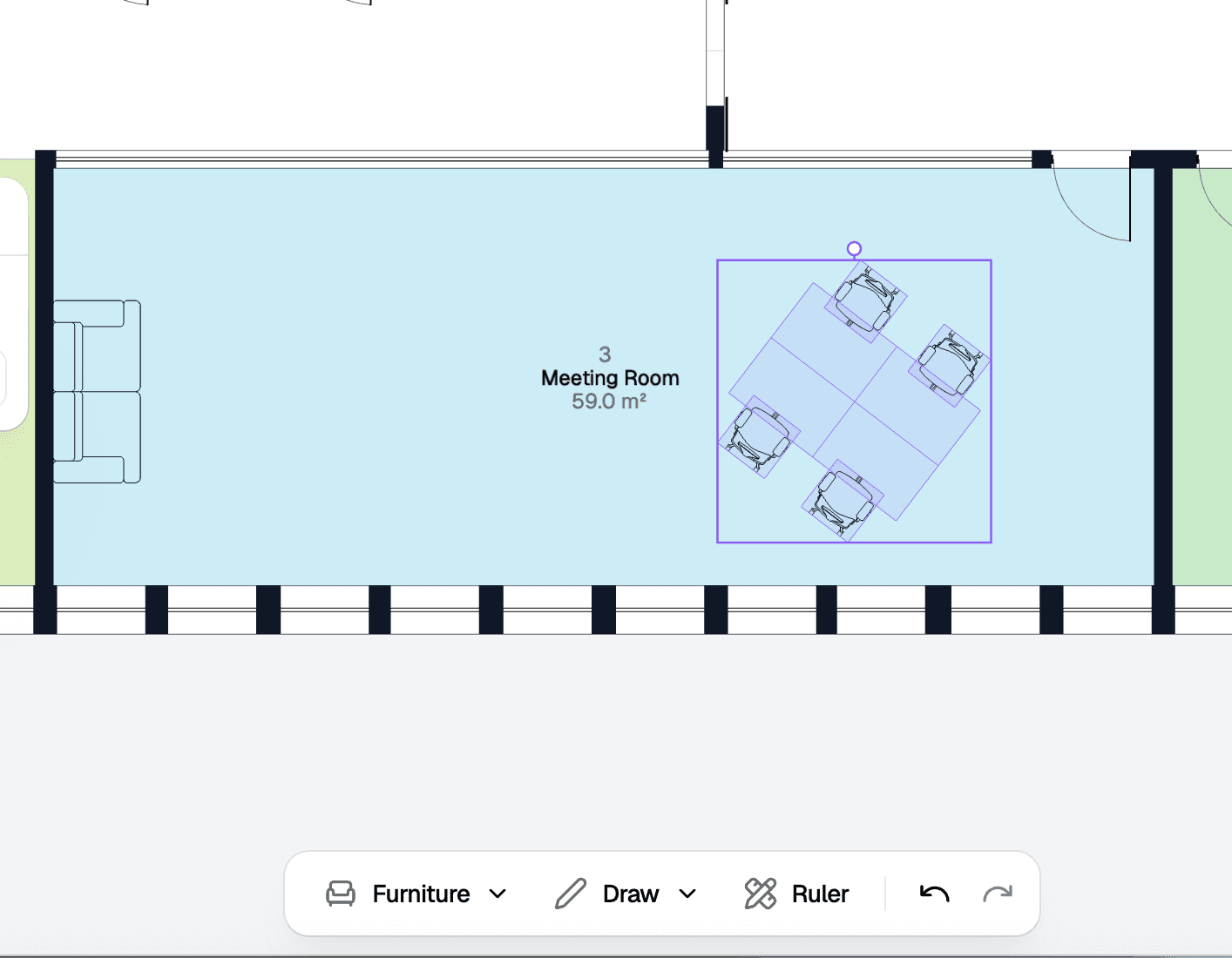
Click a furniture set to select it, then drop it onto the floor plan. All furniture sets can be moved and repositioned freely after placement.
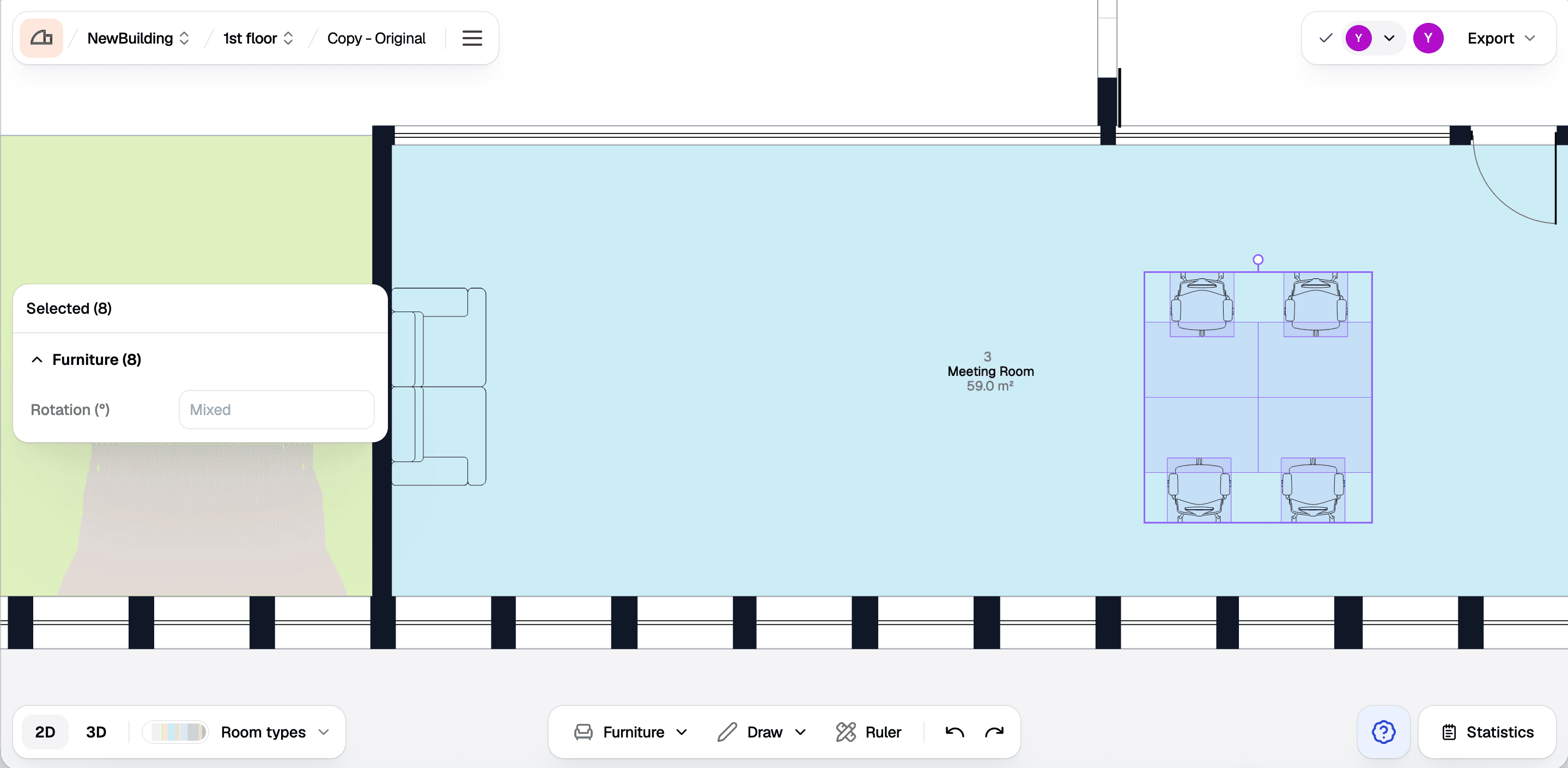
Rotate and align
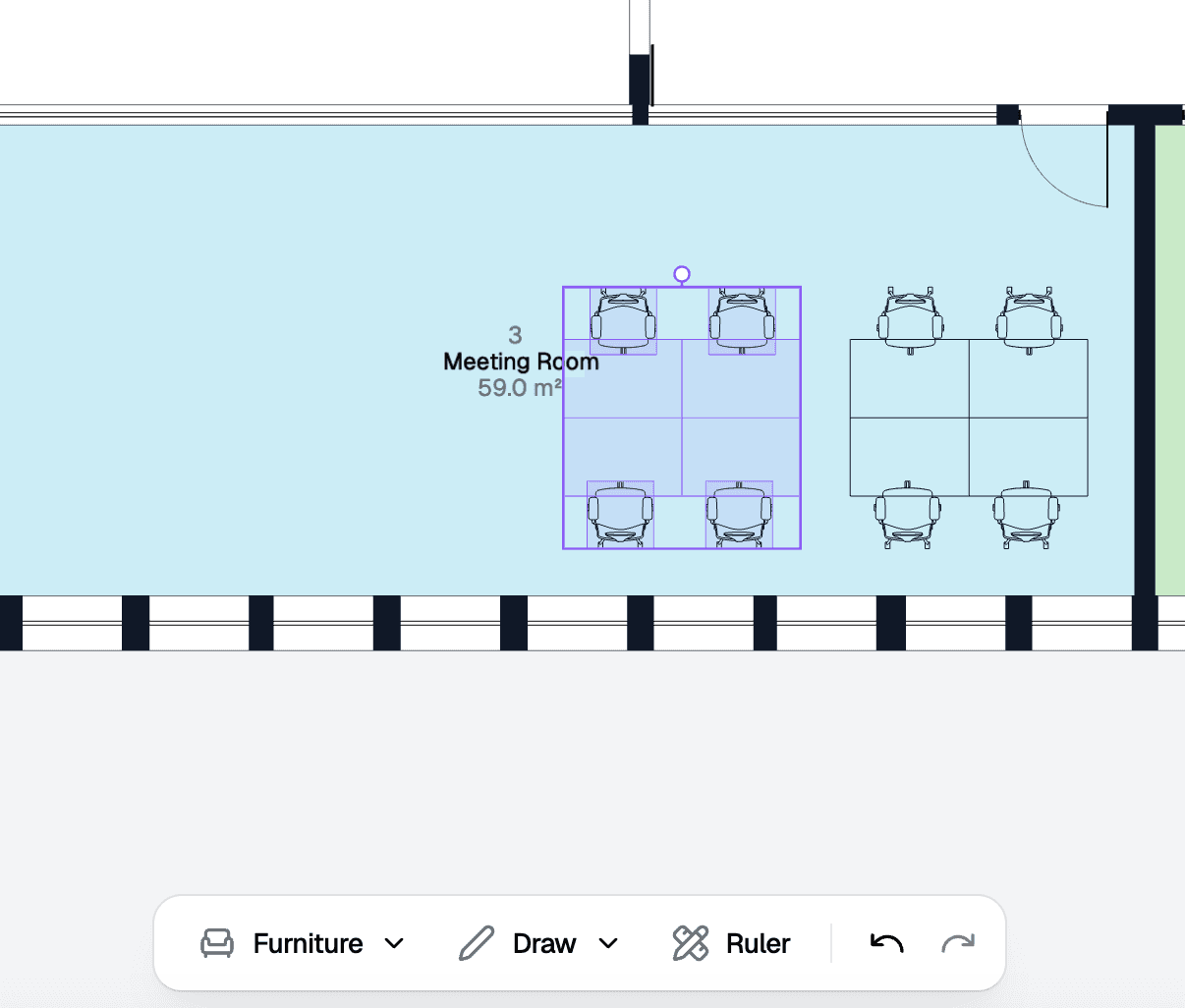
Drag the rotation handle to rotate the furniture set and align it to the room. It will snap to the nearest 45 degrees.
Advanced usage
Duplicate furniture
Select the furniture items you want to duplicate — hold ⇧ Shift and click to select multiple items. Then use ⌘ C to copy and ⌘ V to paste, and drag the duplicated set into place.